

Register your merchant account
Set up your vendor and owner information, choose a business plan and submit your registration for review.
-
01
Start your vendor registration
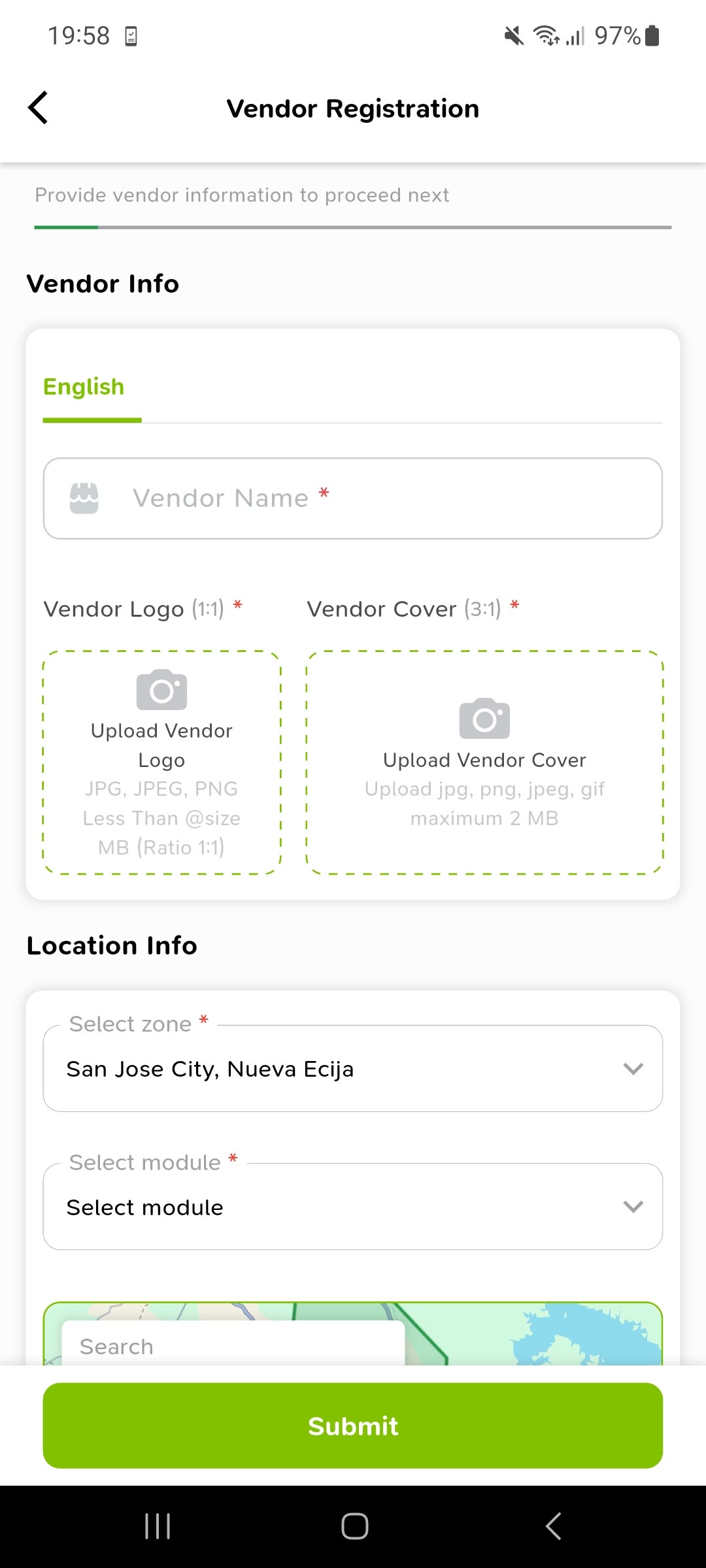
Open Vendor Registration. Prepare your vendor name, a square logo and a wide cover image, then review the Vendor Info and Location Info fields.
Step 01 of 07View screenshot -
02
Enter the owner information
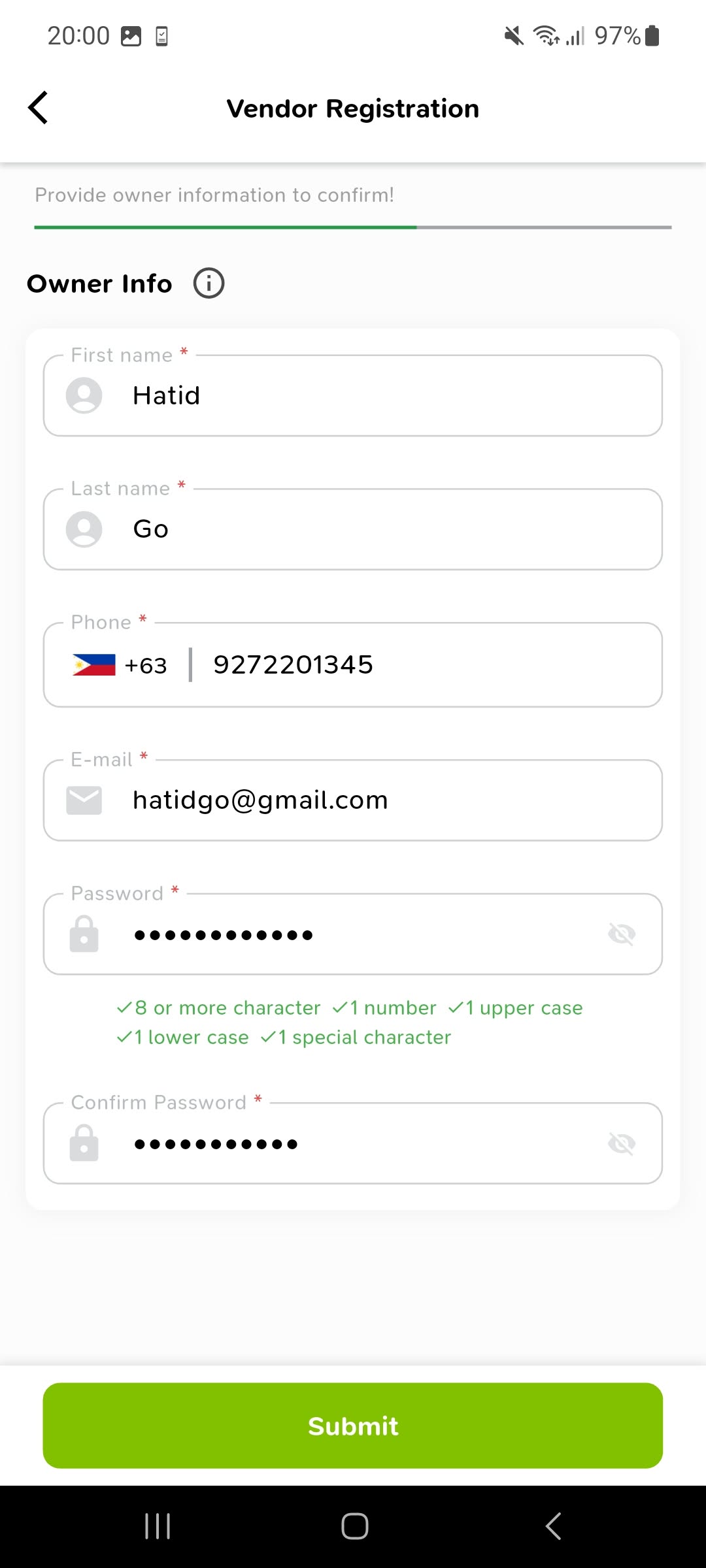
In Owner Info, enter the owner's first and last name, phone number and email address. Create a password, follow the requirements shown and enter the same password in Confirm Password.
Step 02 of 07View screenshot -
03
Complete your vendor details and location
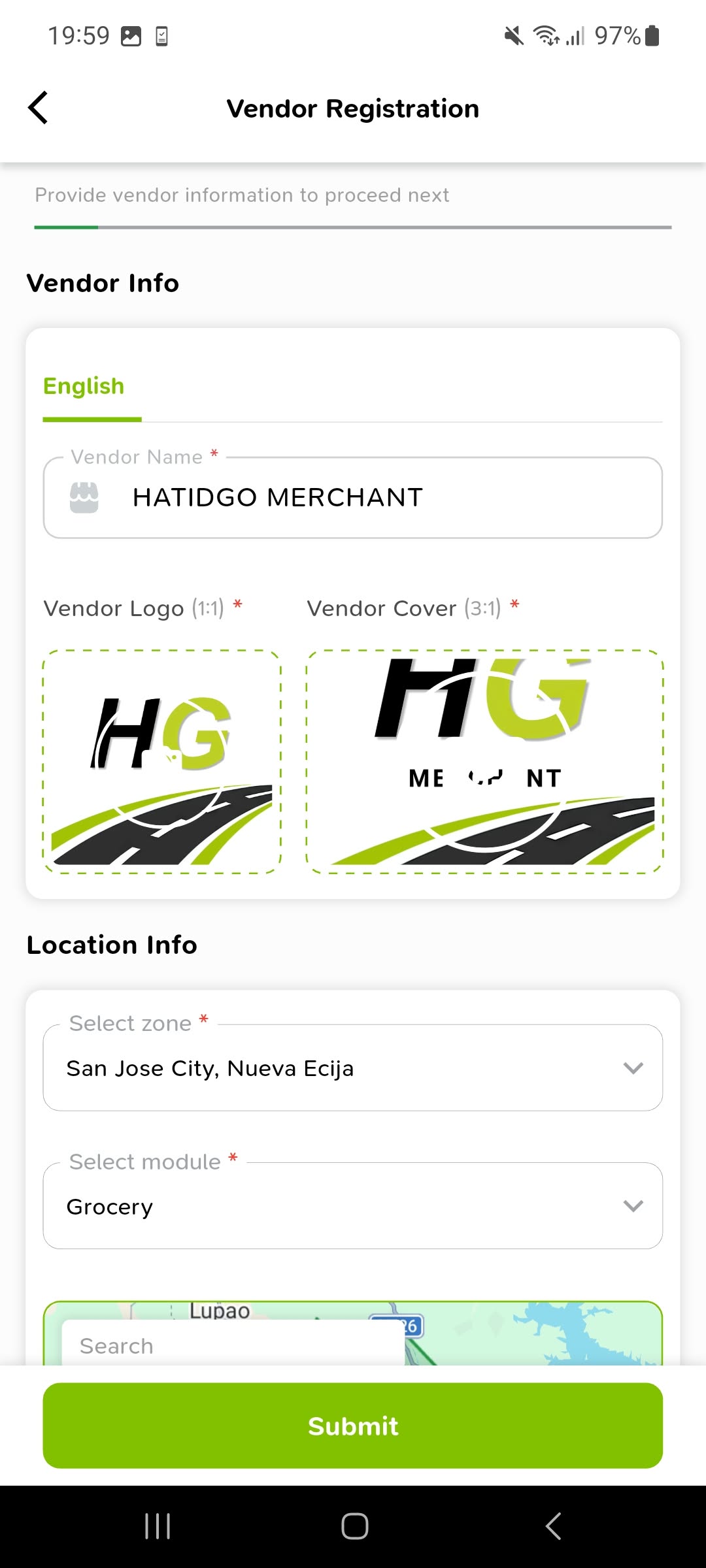
Enter your Vendor Name and upload your Vendor Logo and Vendor Cover. Select your zone and service module, then use the map and address fields to identify your store's location.
Step 03 of 07View screenshot -
04
Set the estimated delivery time
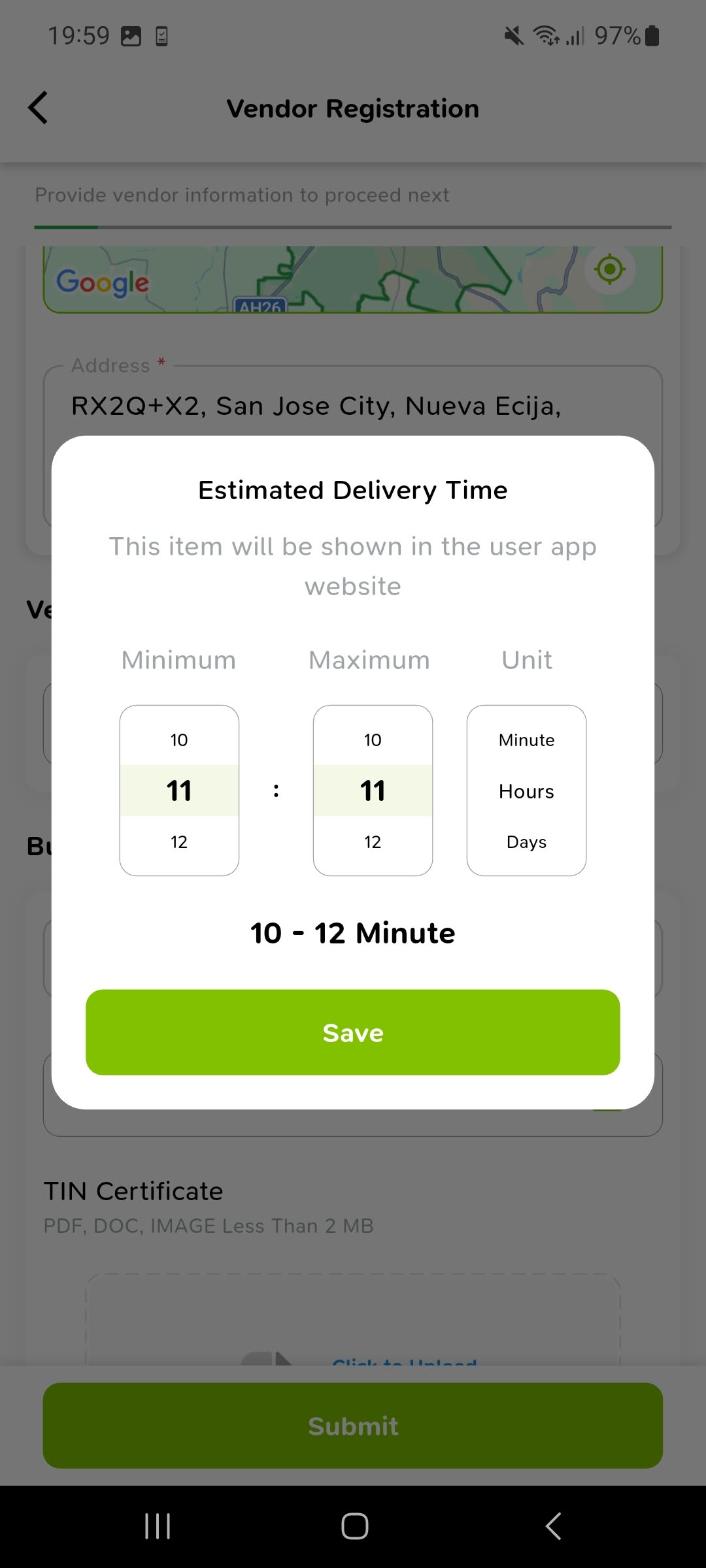
Open Select Time. Choose the minimum and maximum delivery time and its unit in the Estimated Delivery Time picker, then tap Save.
Step 04 of 07View screenshot -
05
Add your business TIN and certificate
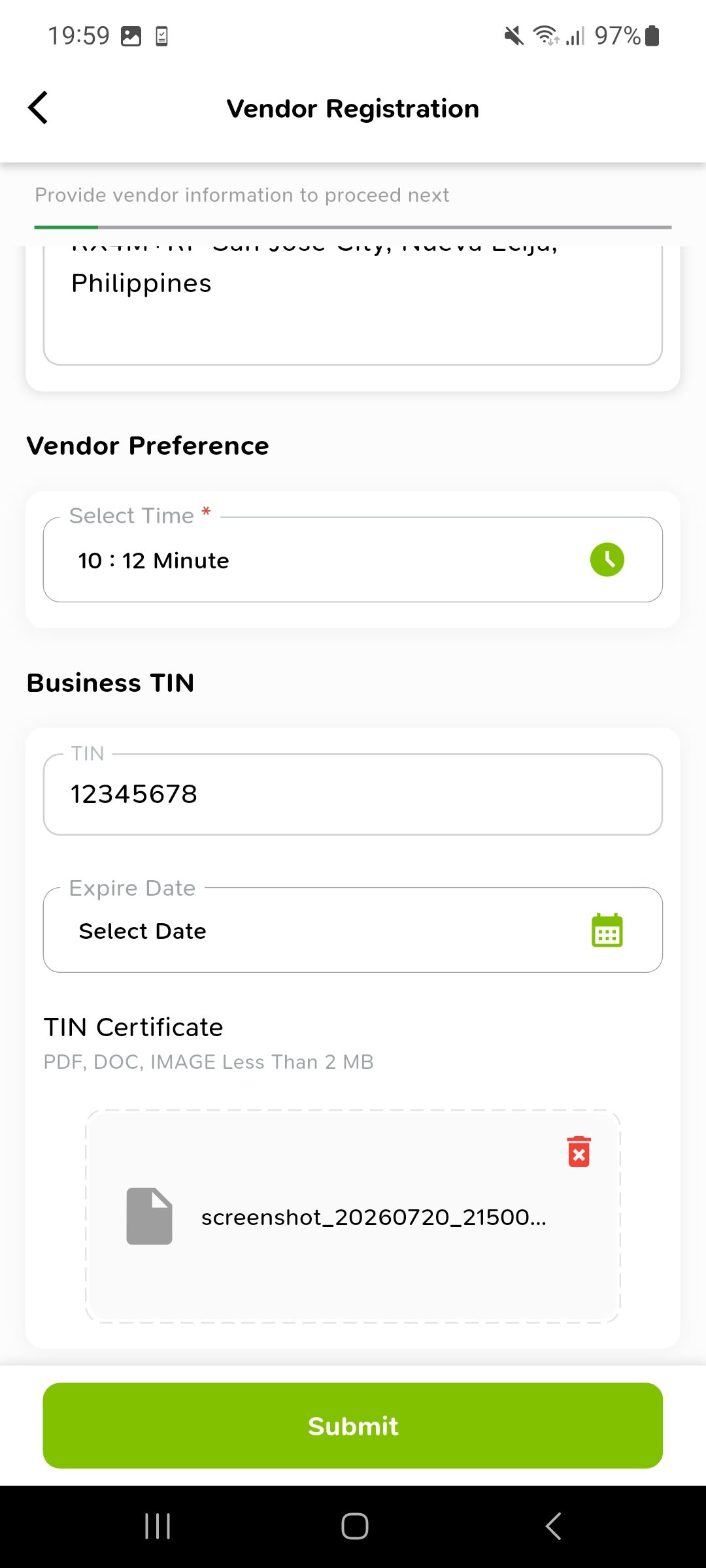
Review the saved delivery time under Vendor Preference. Fill in the Business TIN fields and upload your TIN Certificate as requested, then tap Submit.
Step 05 of 07View screenshot -
06
Review and choose your business plan
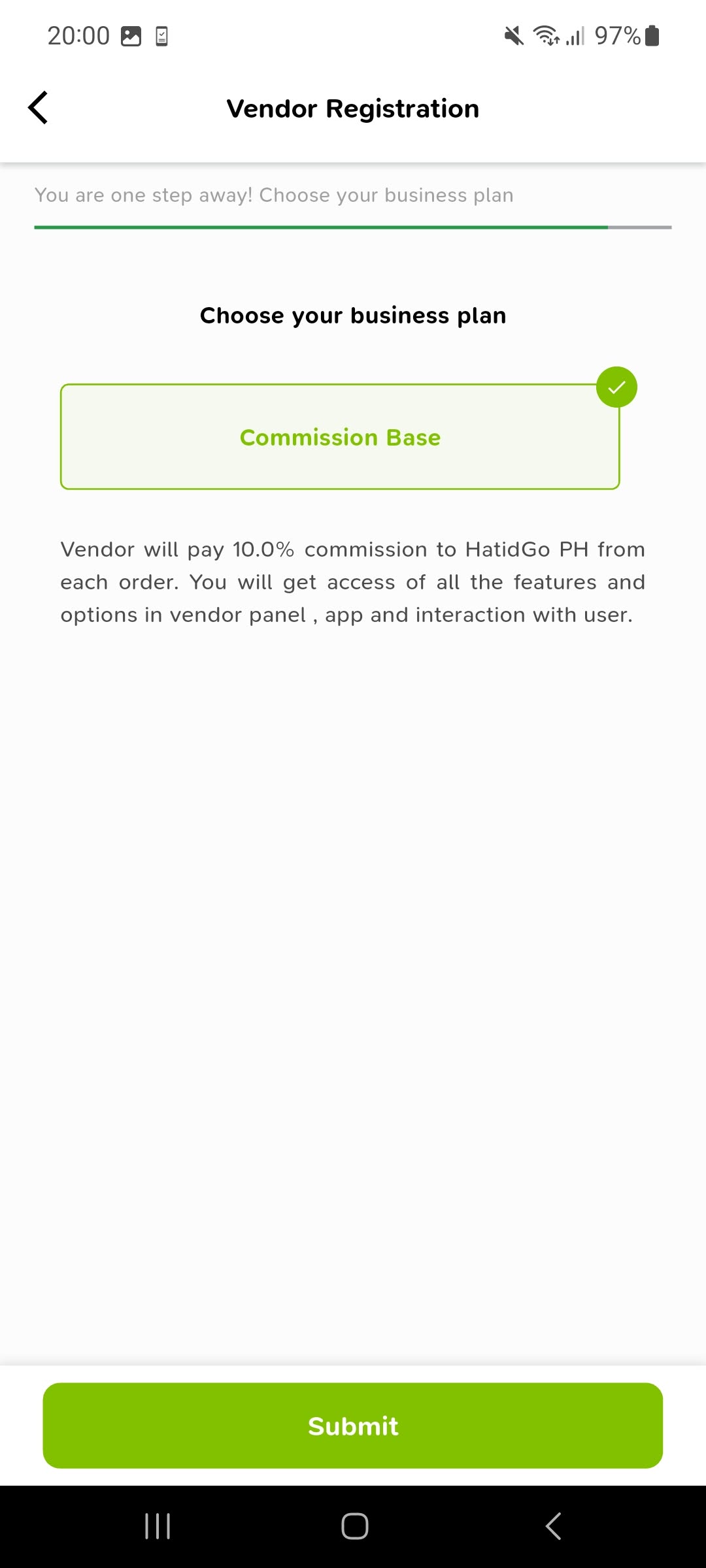
On Choose your business plan, review the Commission Base option and the commission information displayed in the app. Select the plan and tap Submit.
Step 06 of 07View screenshot -
07
Check the registration confirmation
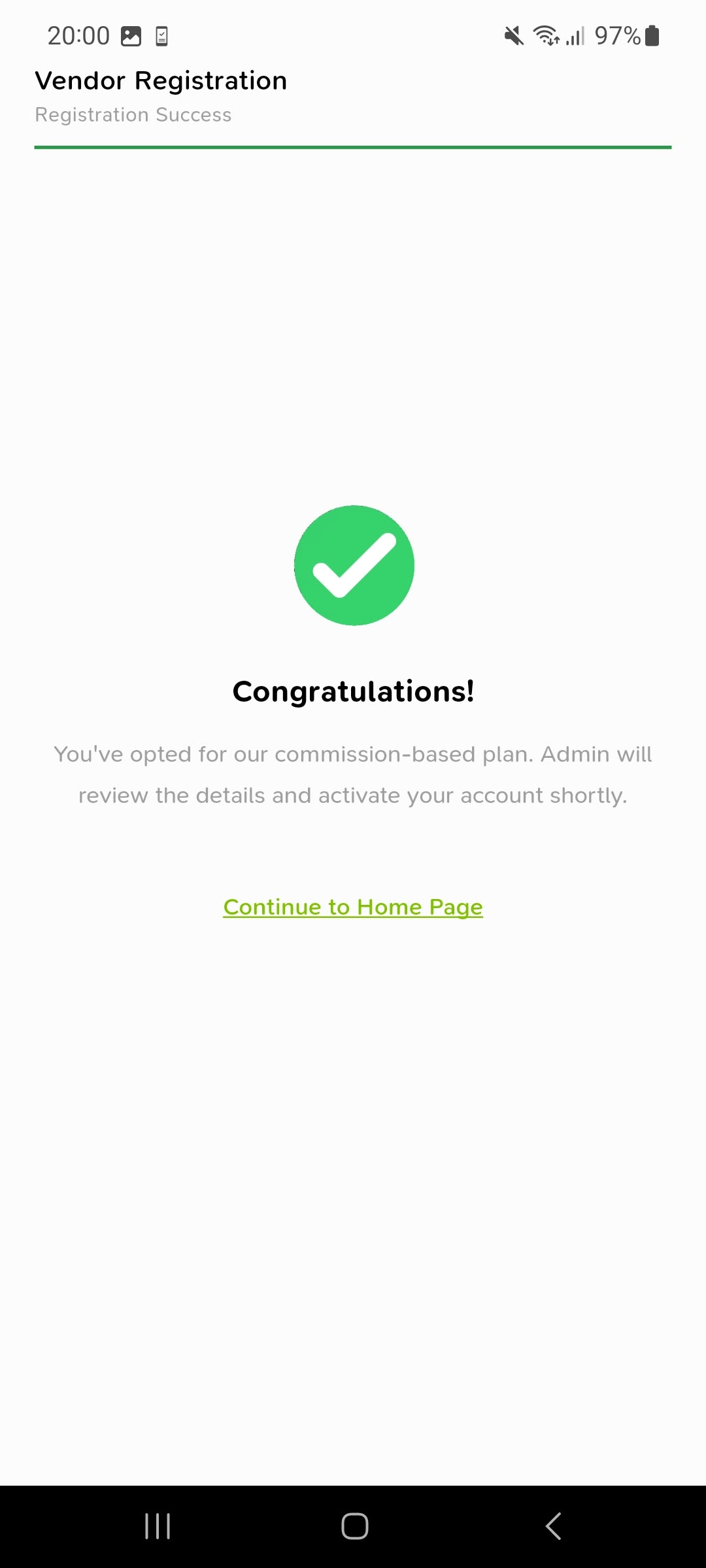
The Registration Success screen confirms your submission. Read the account review message, then tap Continue to Home Page.
Step 07 of 07View screenshot
Configure your store
Manage availability, order options, product preferences and operating hours in Restaurant Config.
-
01
Review store availability and order options
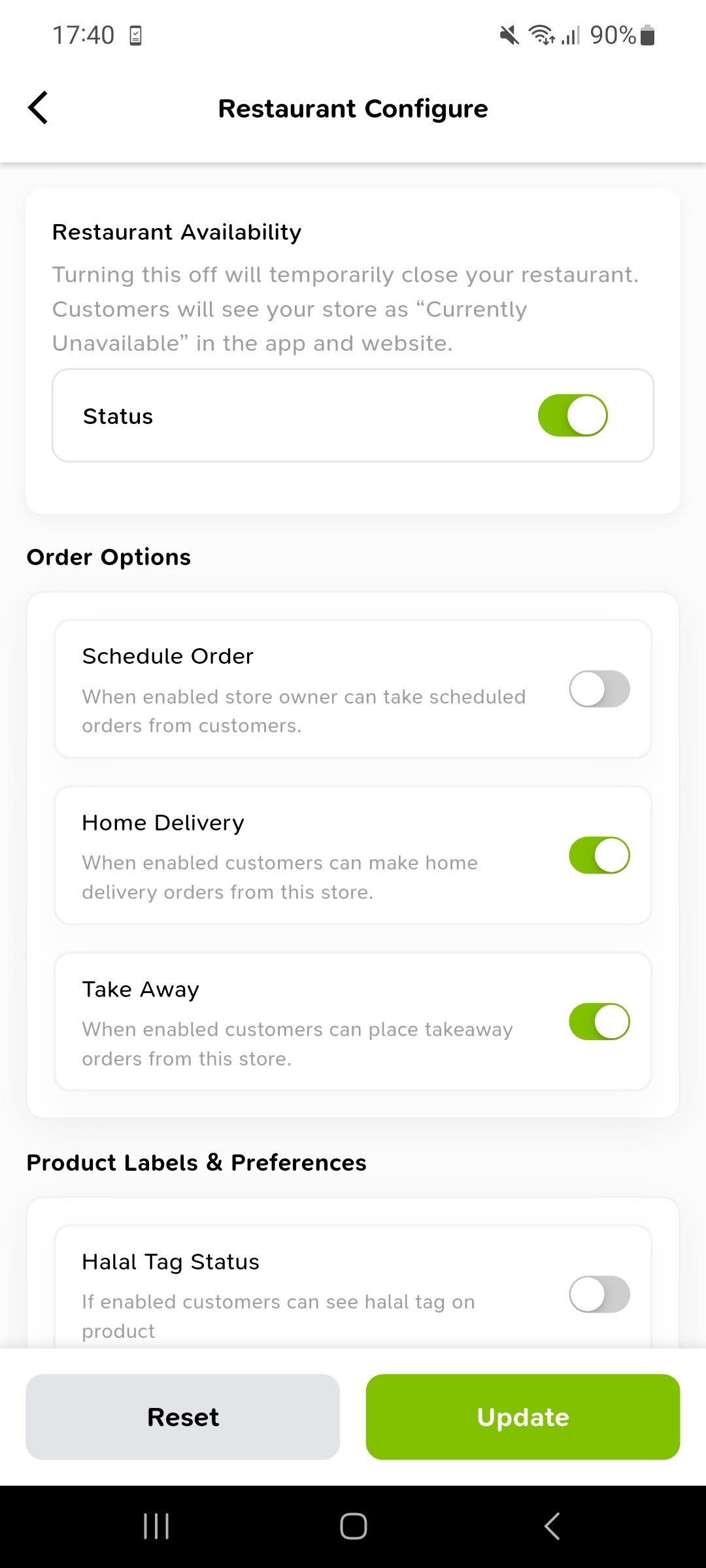
Open Restaurant Config from your store menu. Use Restaurant Availability to control your status, then review Schedule Order, Home Delivery and Take Away.
Step 01 of 07View screenshot -
02
Confirm a temporary closure when needed
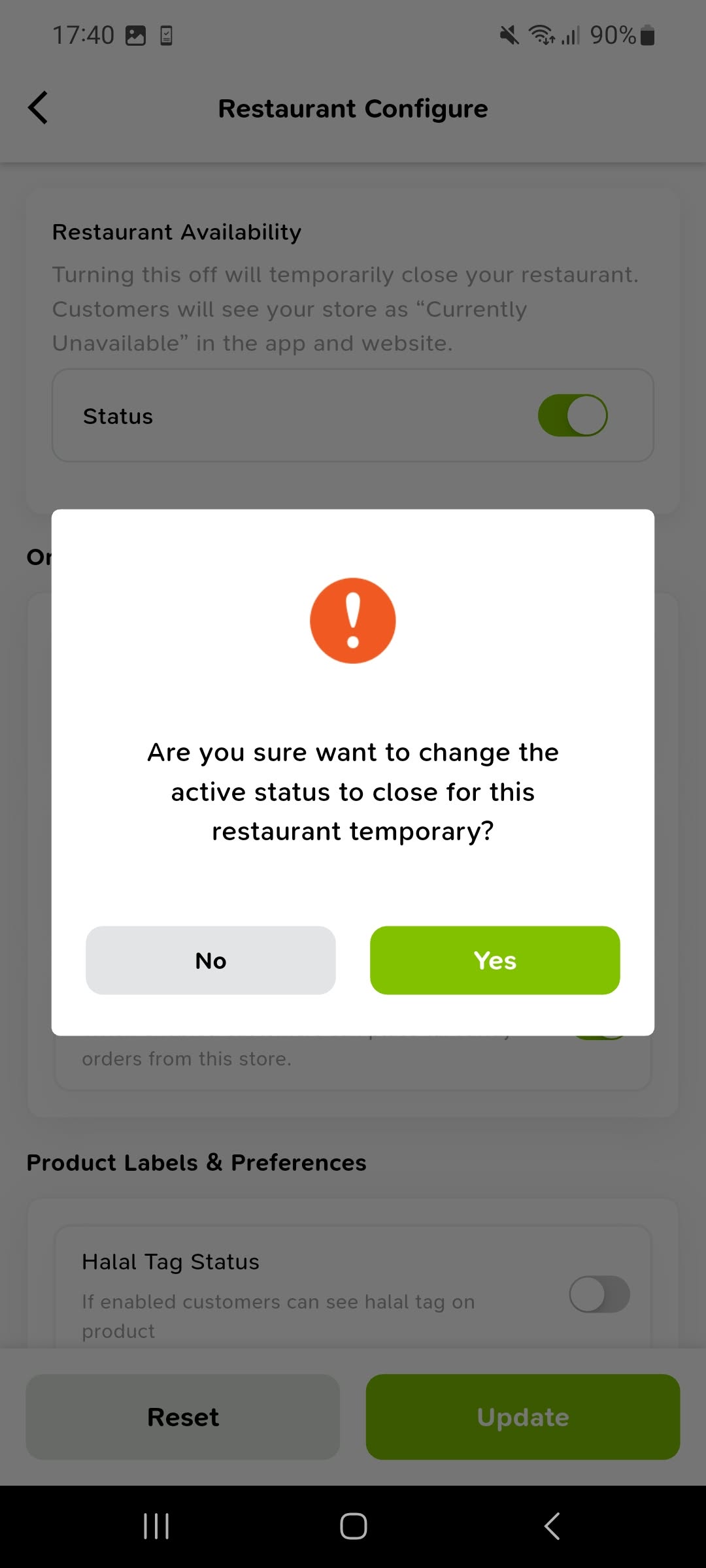
If you switch off your store's active status, the app asks you to confirm. Tap Yes to temporarily close the store or No to keep the current status.
Step 02 of 07View screenshot -
03
Set product preferences and delivery time
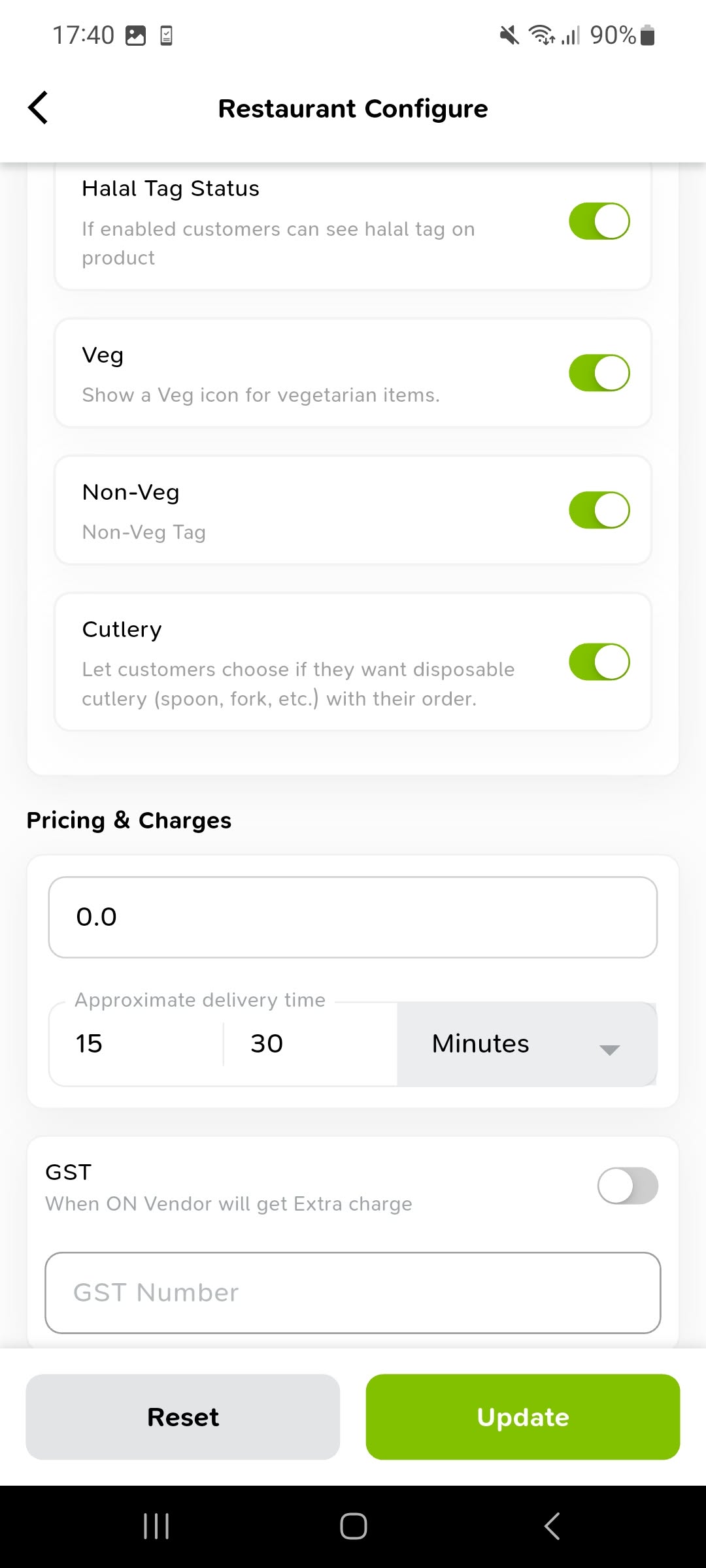
Scroll to Product Labels & Preferences and set the options that apply to your items, including Halal Tag Status, Veg, Non-Veg and Cutlery. Review Pricing & Charges and your approximate delivery time.
Step 03 of 07View screenshot -
04
Add your operating days
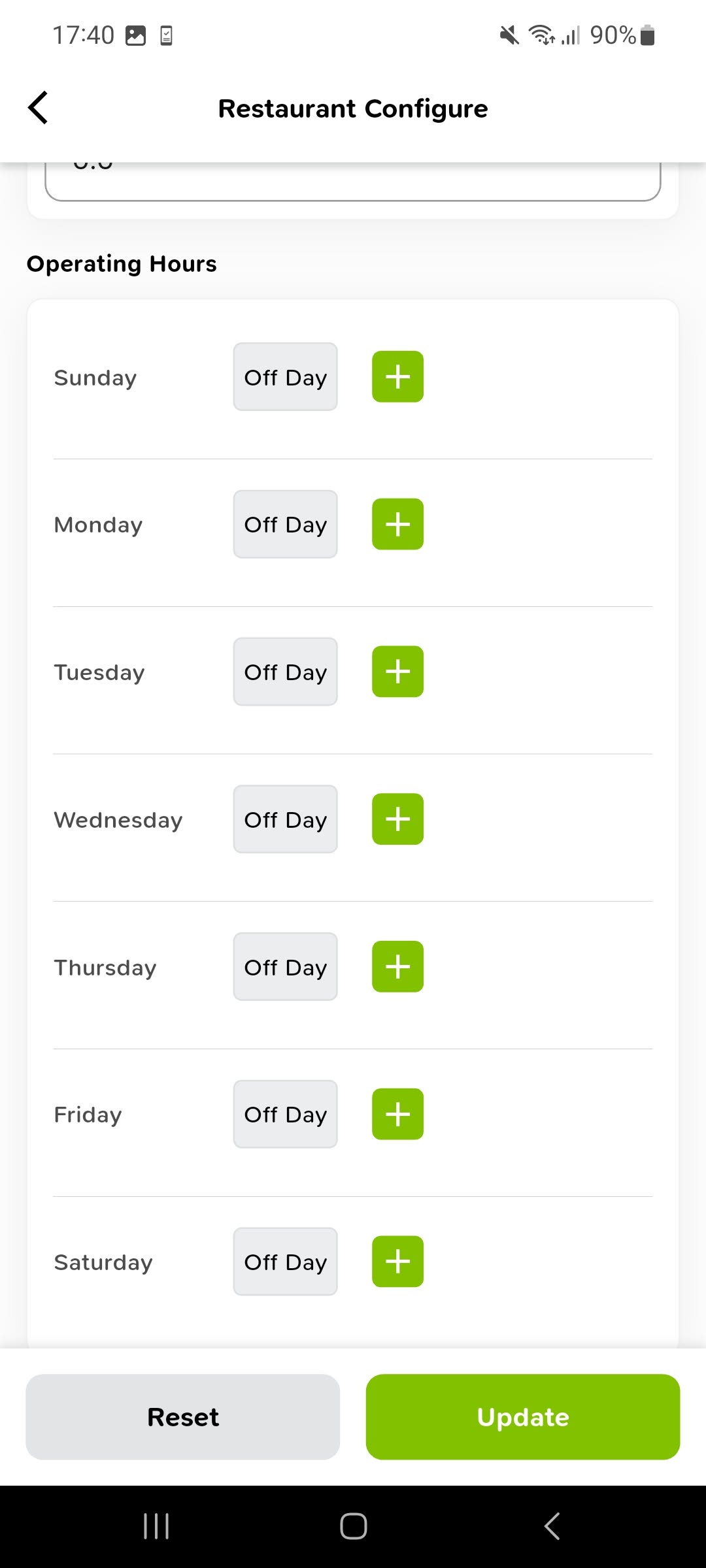
Scroll to Operating Hours. Each day starts as Off Day until a schedule is added. Tap the green + beside a day to set its hours.
Step 04 of 07View screenshot -
05
Choose opening and closing times
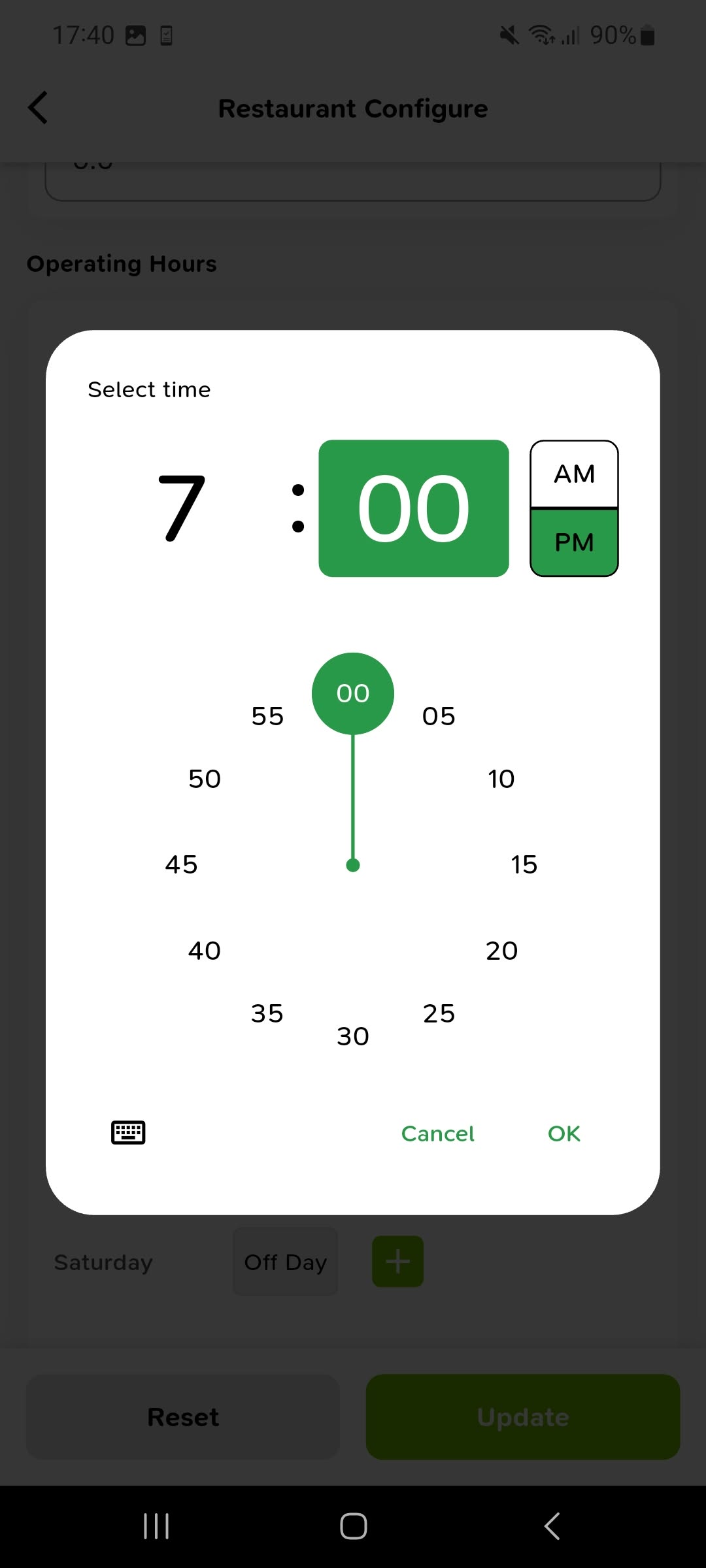
In the time picker, select the hour and minutes, choose AM or PM, and tap OK. Complete the opening and closing times for the day you selected.
Step 05 of 07View screenshot -
06
Review the saved daily schedule
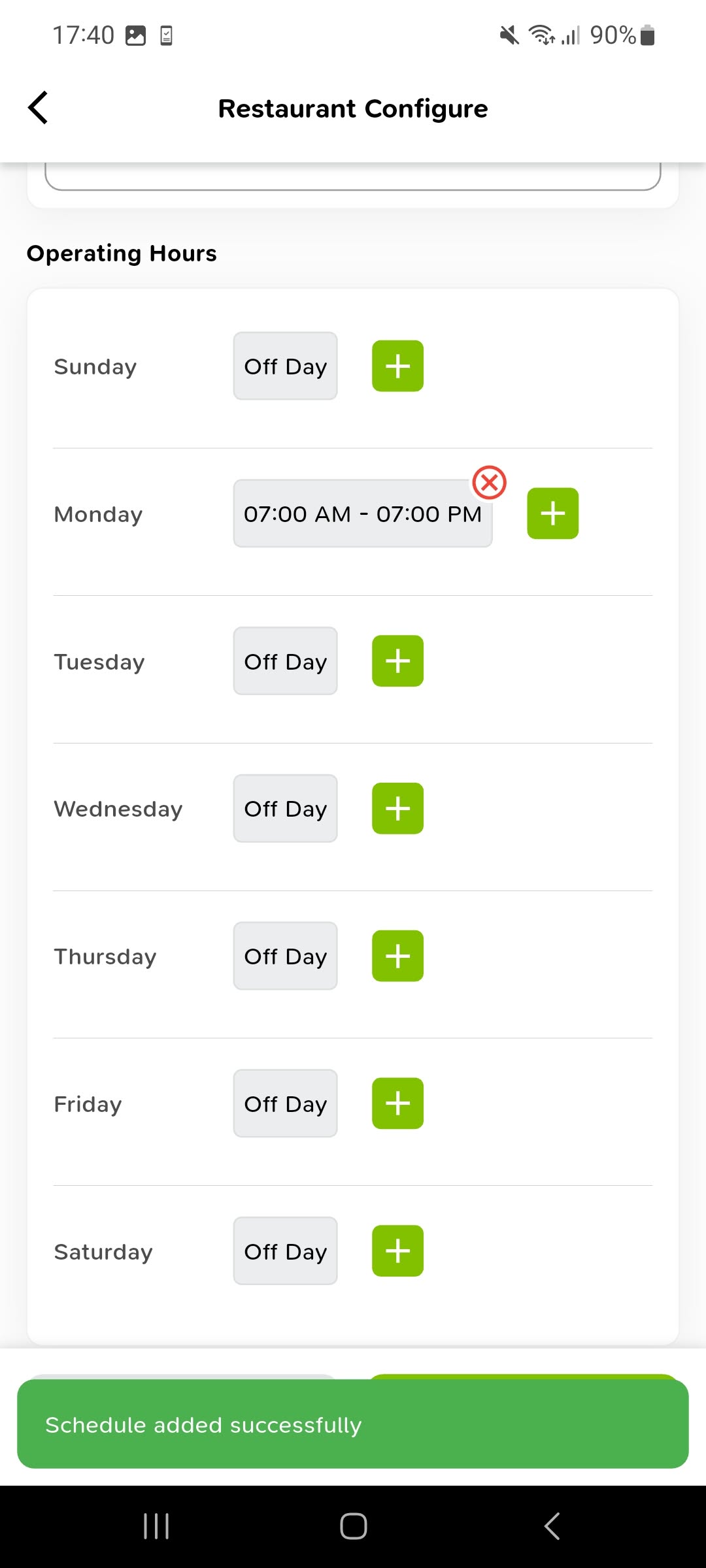
Check the time range beside the day. The example shows Monday, 07:00 AM - 07:00 PM. Add the remaining days as needed; use the red remove icon to delete a time range.
Step 06 of 07View screenshot -
07
Update and confirm your store settings
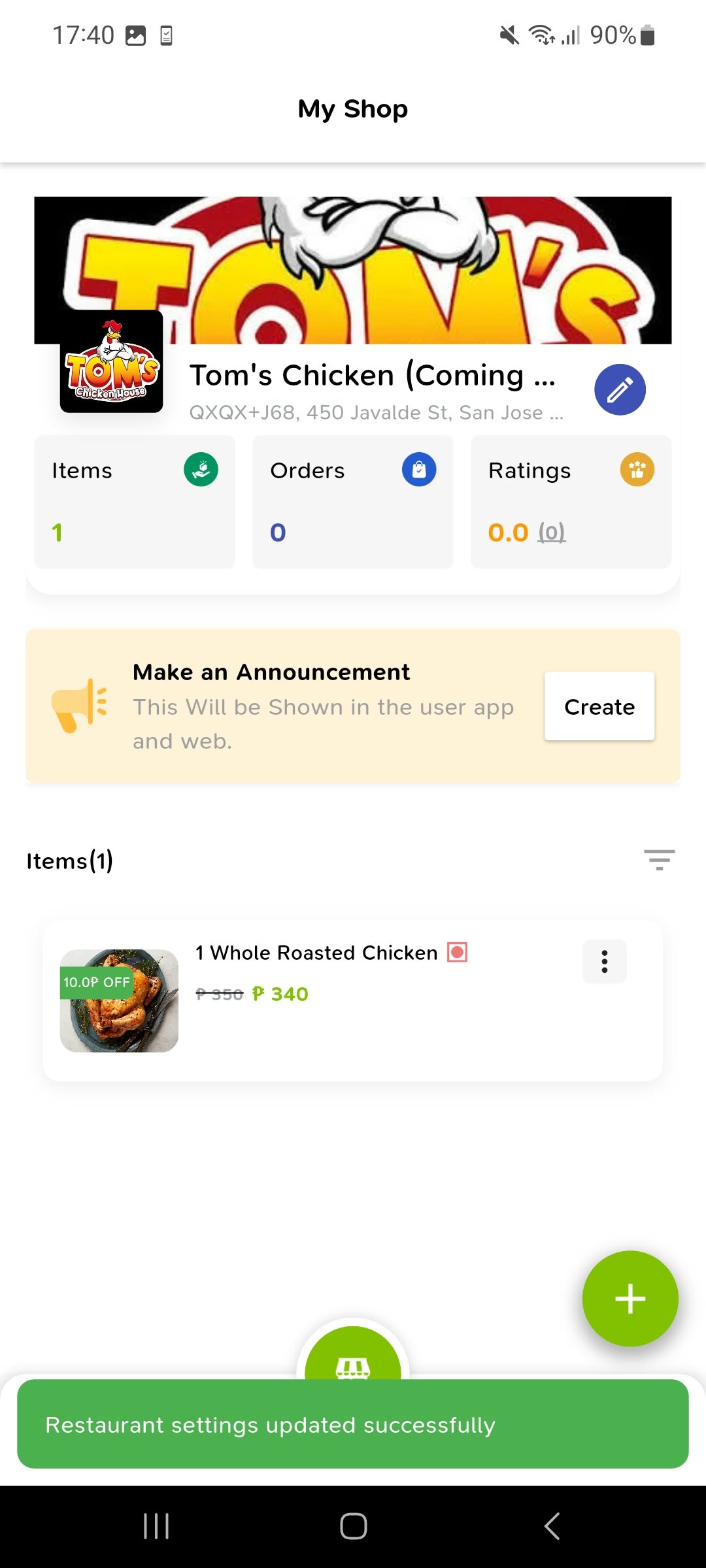
After reviewing your settings and hours, tap Update. The app returns to My Shop and displays Restaurant settings updated successfully.
Step 07 of 07View screenshot
Add a product to your store
Create an item from My Shop, complete its details and pricing, then submit it and check your item list.
-
01
Open My Shop and add an item
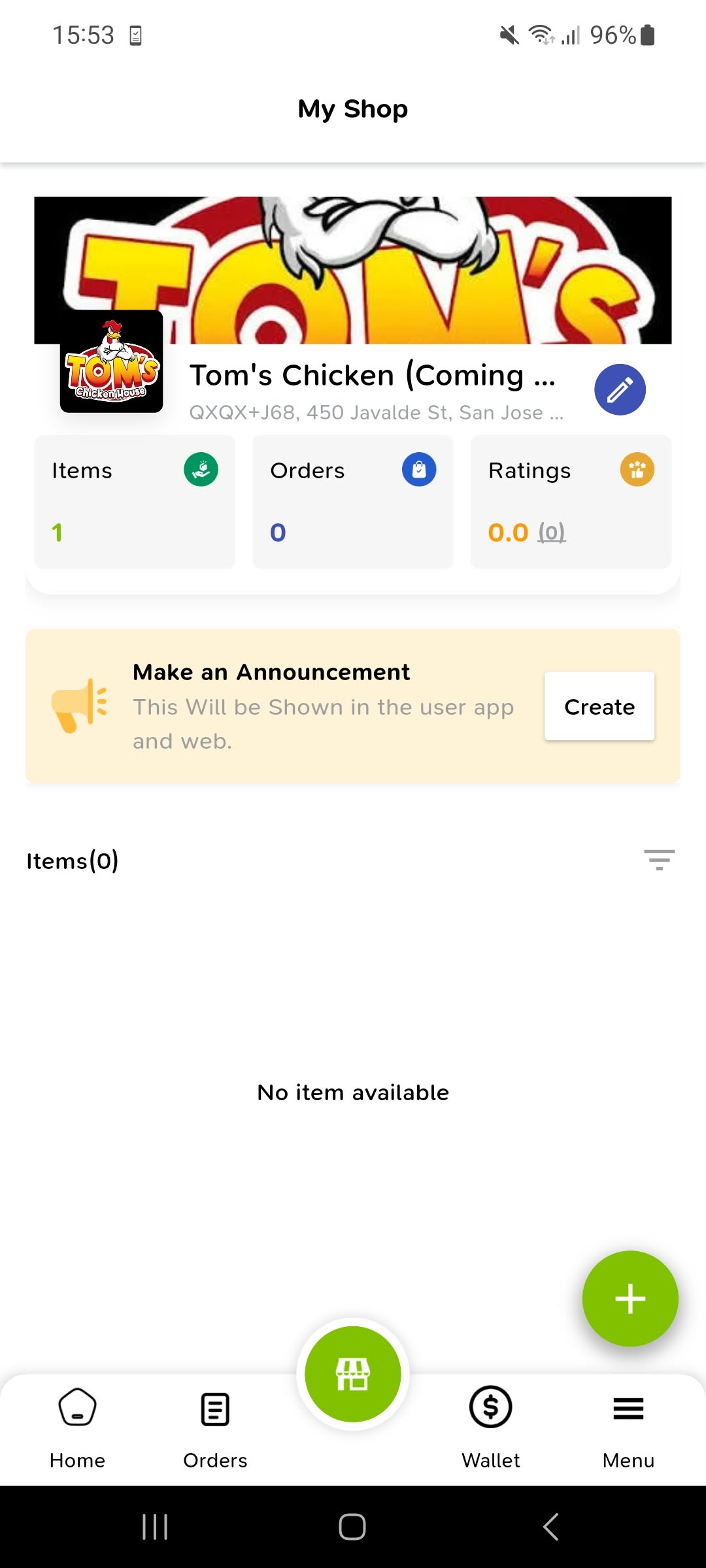
Go to My Shop using the store icon in the bottom navigation. Tap the green + button to open Add Item.
Step 01 of 10View screenshot -
02
Start with General Info
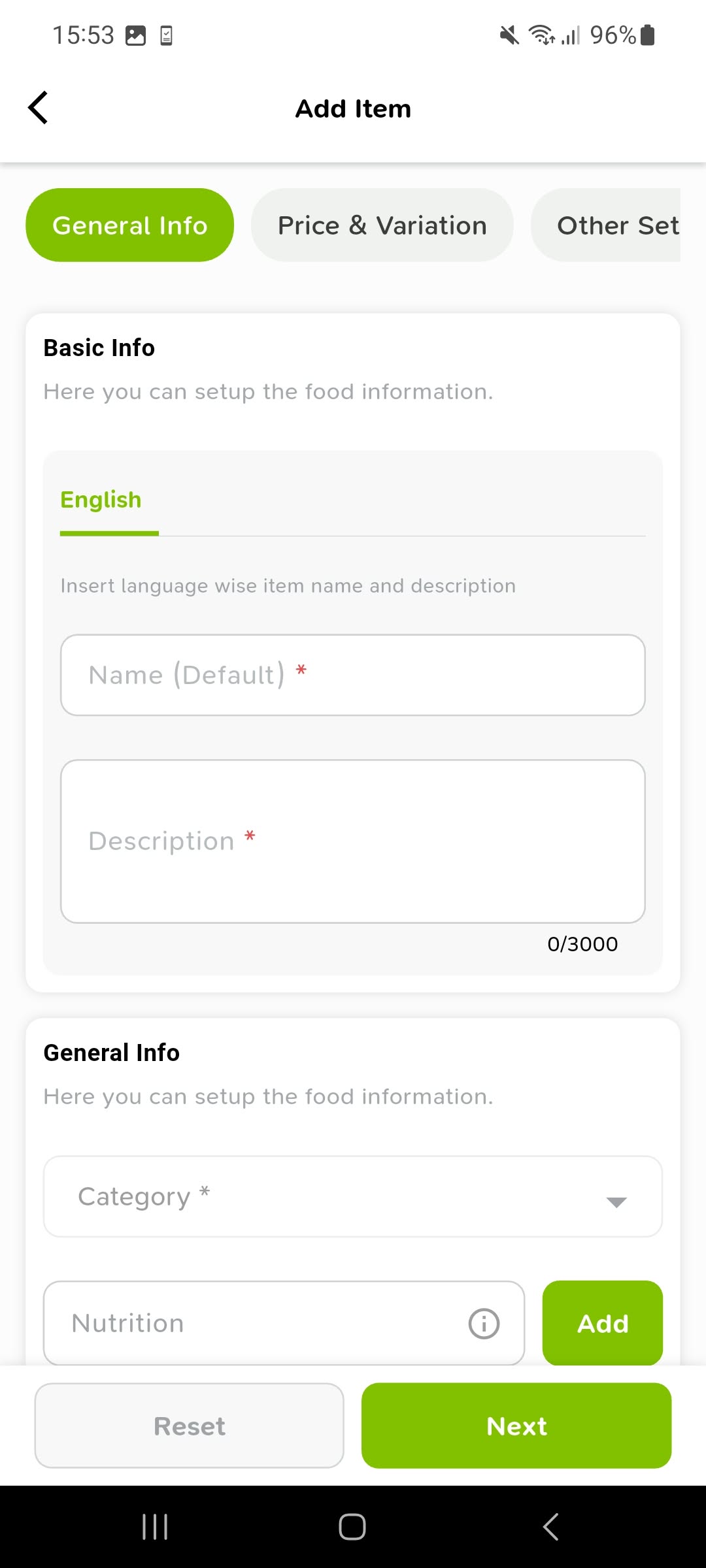
In Add Item, keep the General Info tab selected. Locate the required Name, Description and Category fields.
Step 02 of 10View screenshot -
03
Enter the item name and description
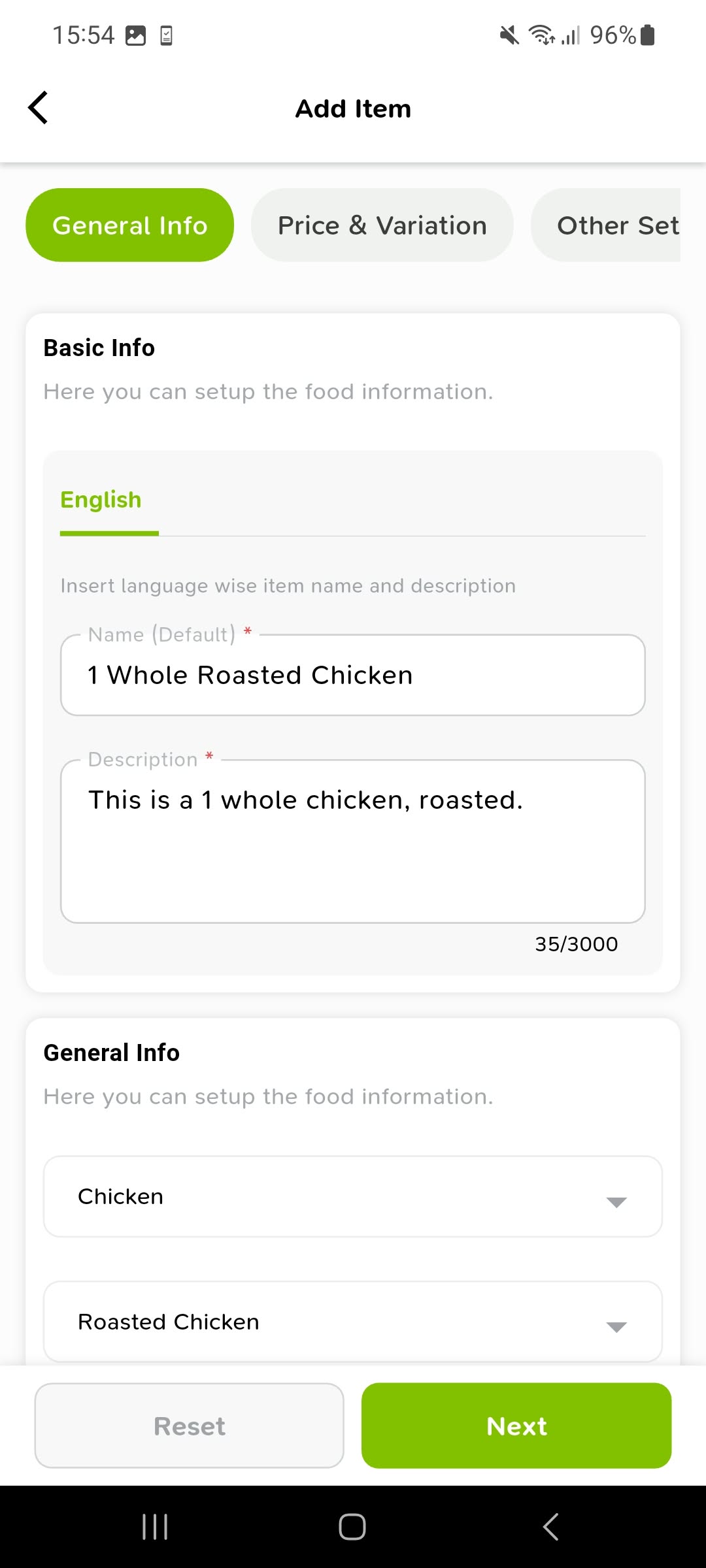
Fill in a clear name and description, then choose the category and subcategory shown for your store. The example uses 1 Whole Roasted Chicken, Chicken and Roasted Chicken.
Step 03 of 10View screenshot -
04
Set nutrition, ingredients and food type
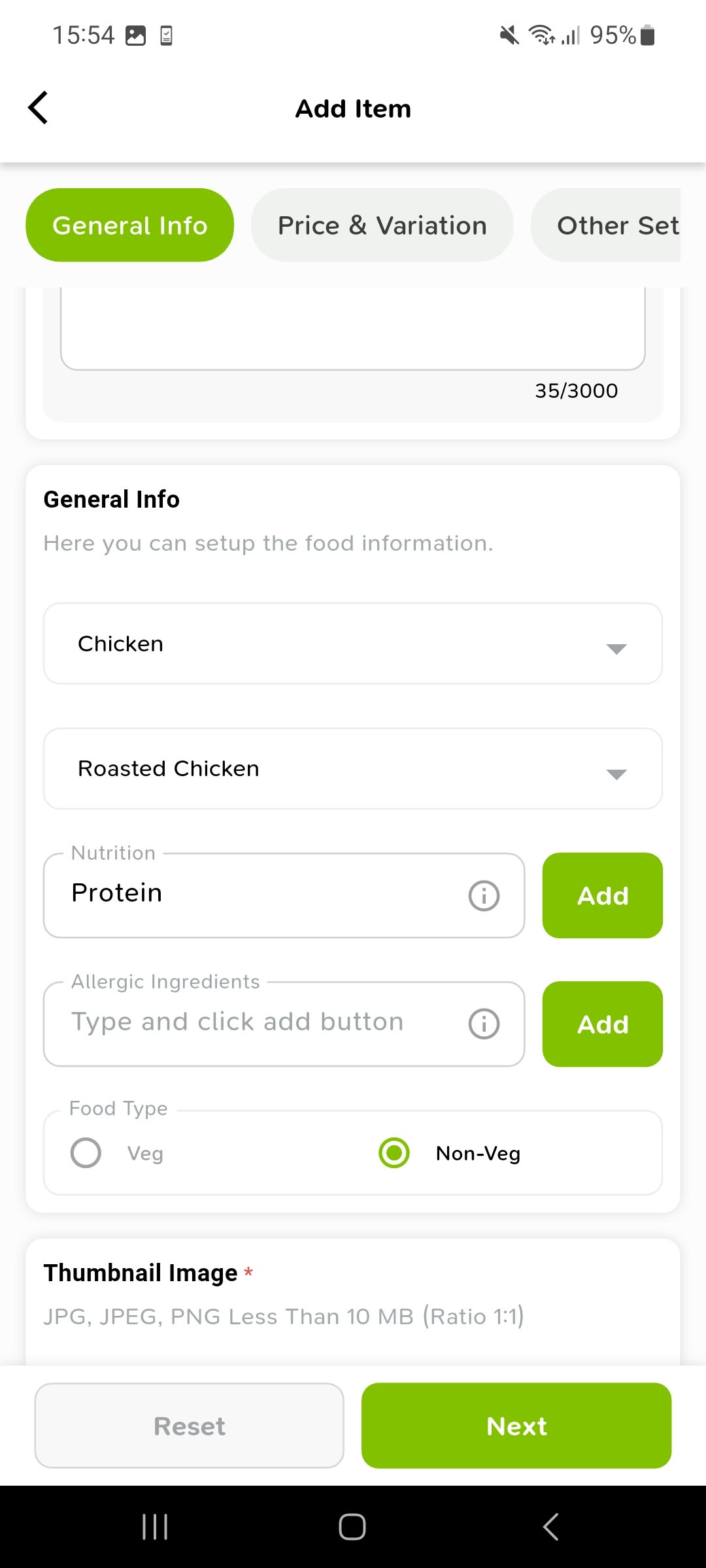
Add nutrition or allergic ingredient details where applicable, using Add to save each entry. Select Veg or Non-Veg to match the item, then scroll to Thumbnail Image.
Step 04 of 10View screenshot -
05
Upload the product thumbnail
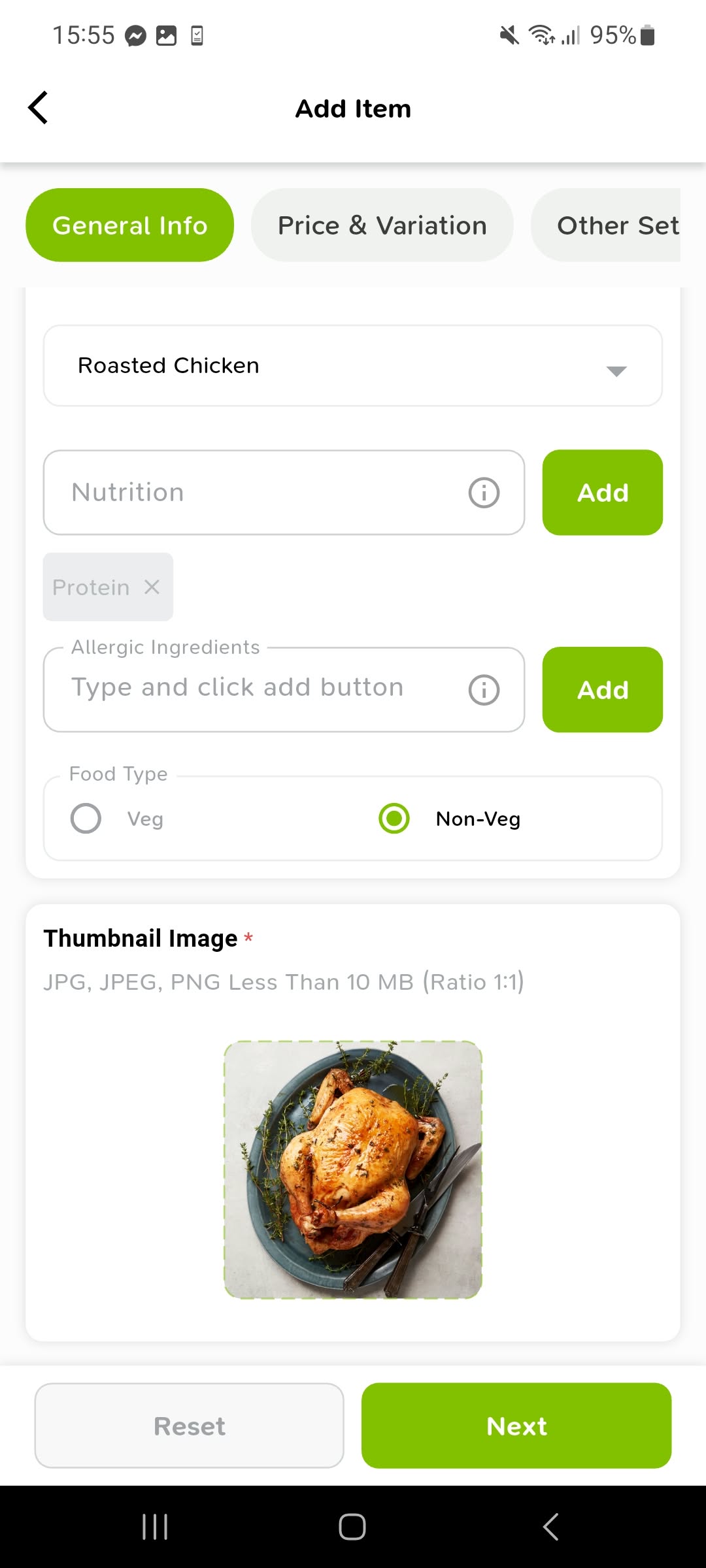
Upload a square product photo under Thumbnail Image. Review the image and the details above it, then tap Next.
Step 05 of 10View screenshot -
06
Set the price and variations
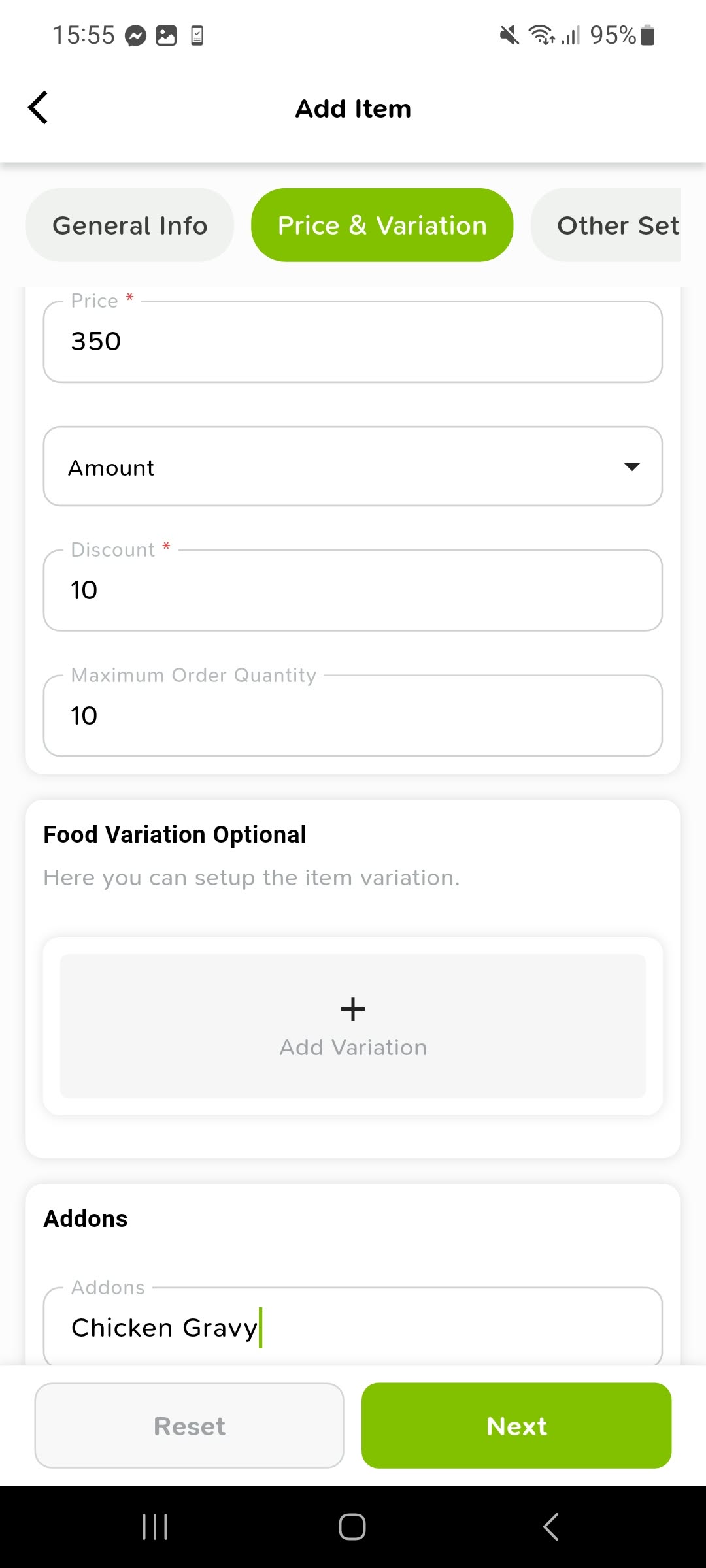
On Price & Variation, enter the price, discount settings and maximum order quantity as applicable. Add variations or addons if needed, then tap Next.
Step 06 of 10View screenshot -
07
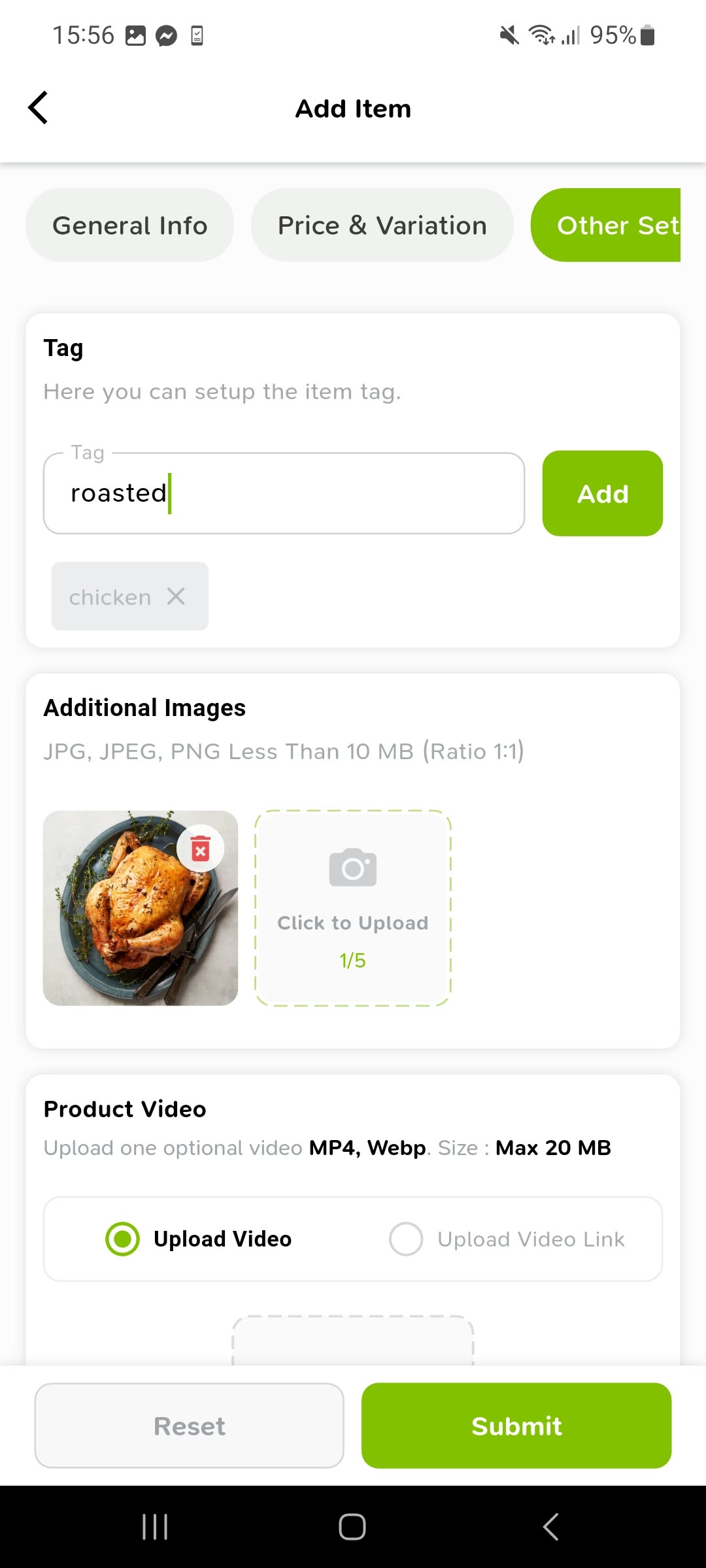
Add tags and additional images
In Other Settings, enter relevant tags and tap Add. Upload additional item photos under Additional Images to show customers more views of the product.
Step 07 of 10View screenshot -
08
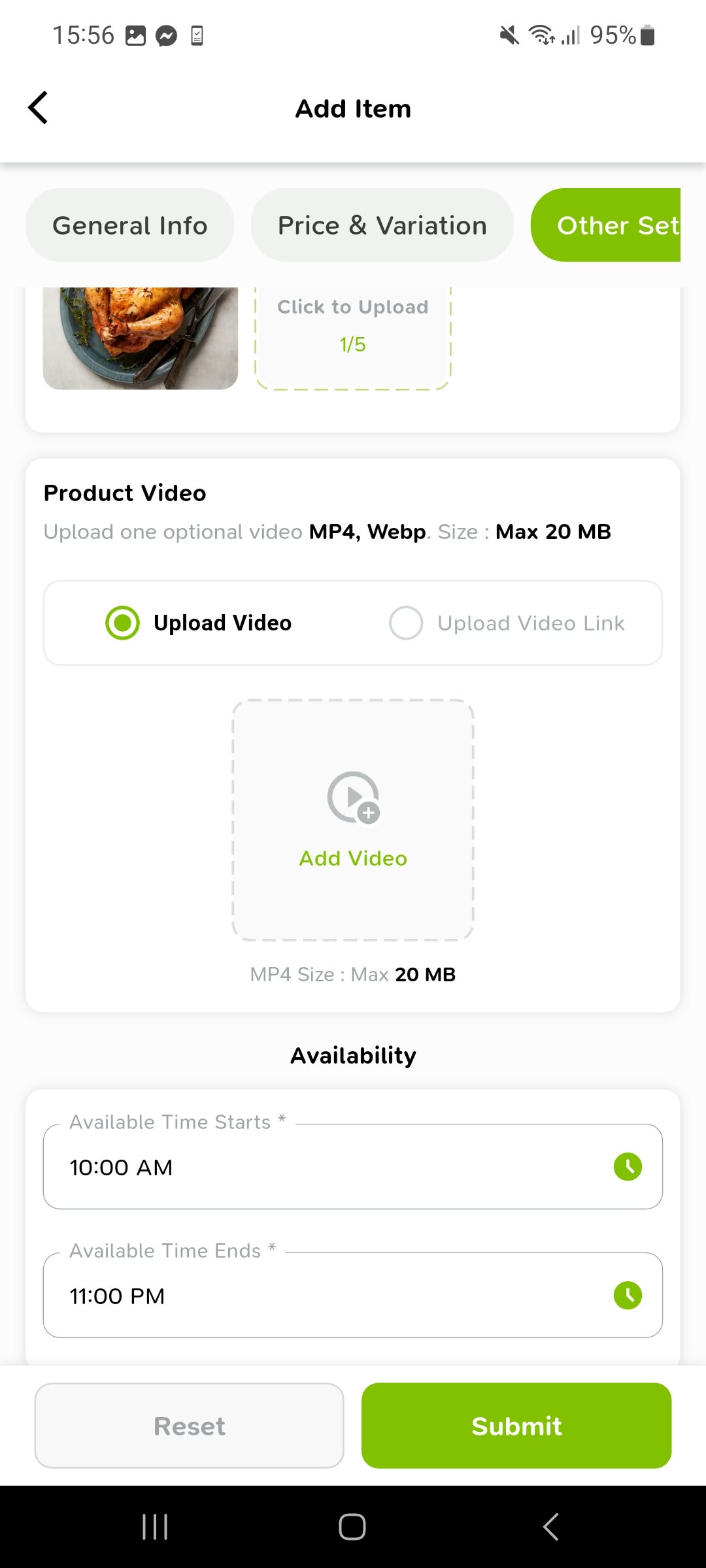
Review video options and availability
Add an optional product video or video link if needed. Under Availability, set Available Time Starts and Available Time Ends for the item.
Step 08 of 10View screenshot -
09
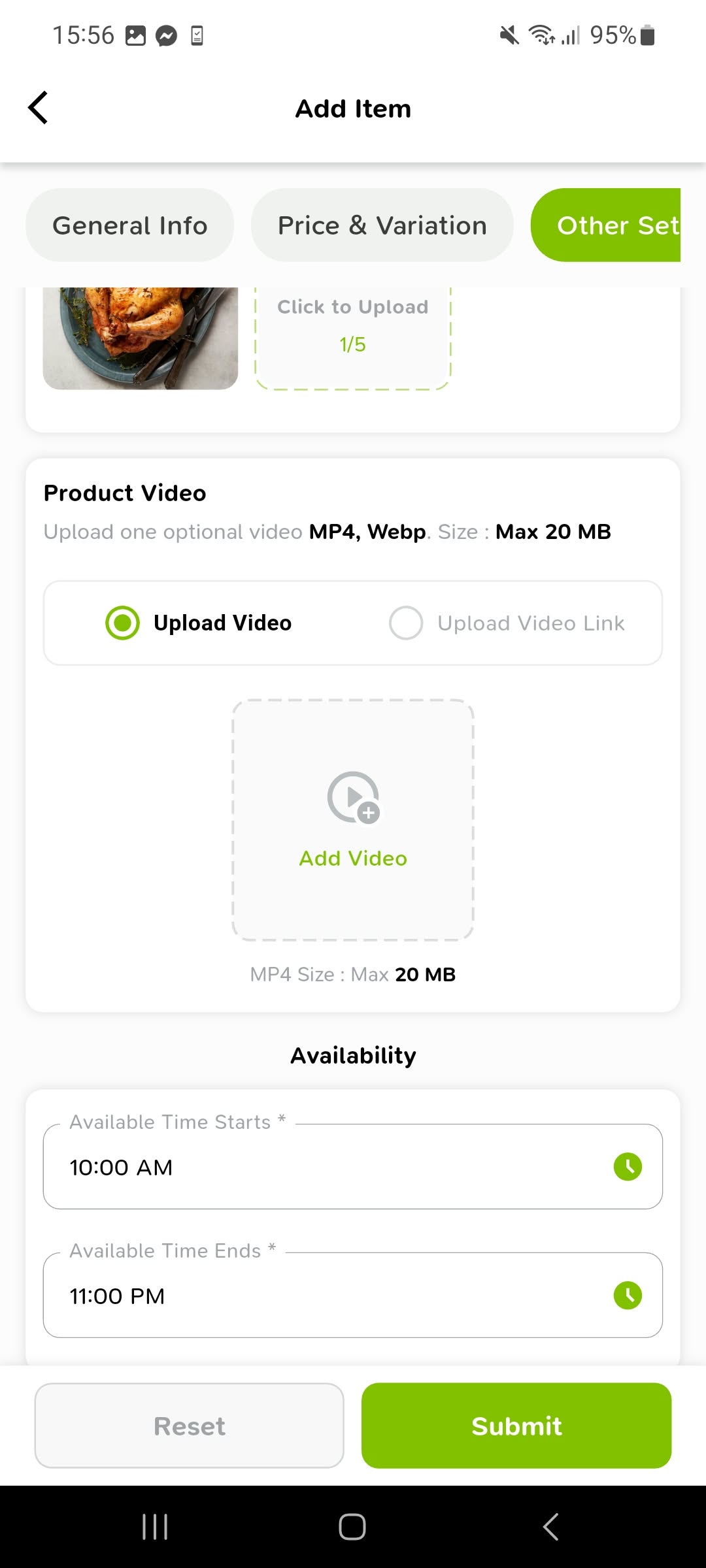
Submit the completed product
Check the final details and availability times. When everything is ready, tap Submit at the bottom of Add Item.
Step 09 of 10View screenshot -
10
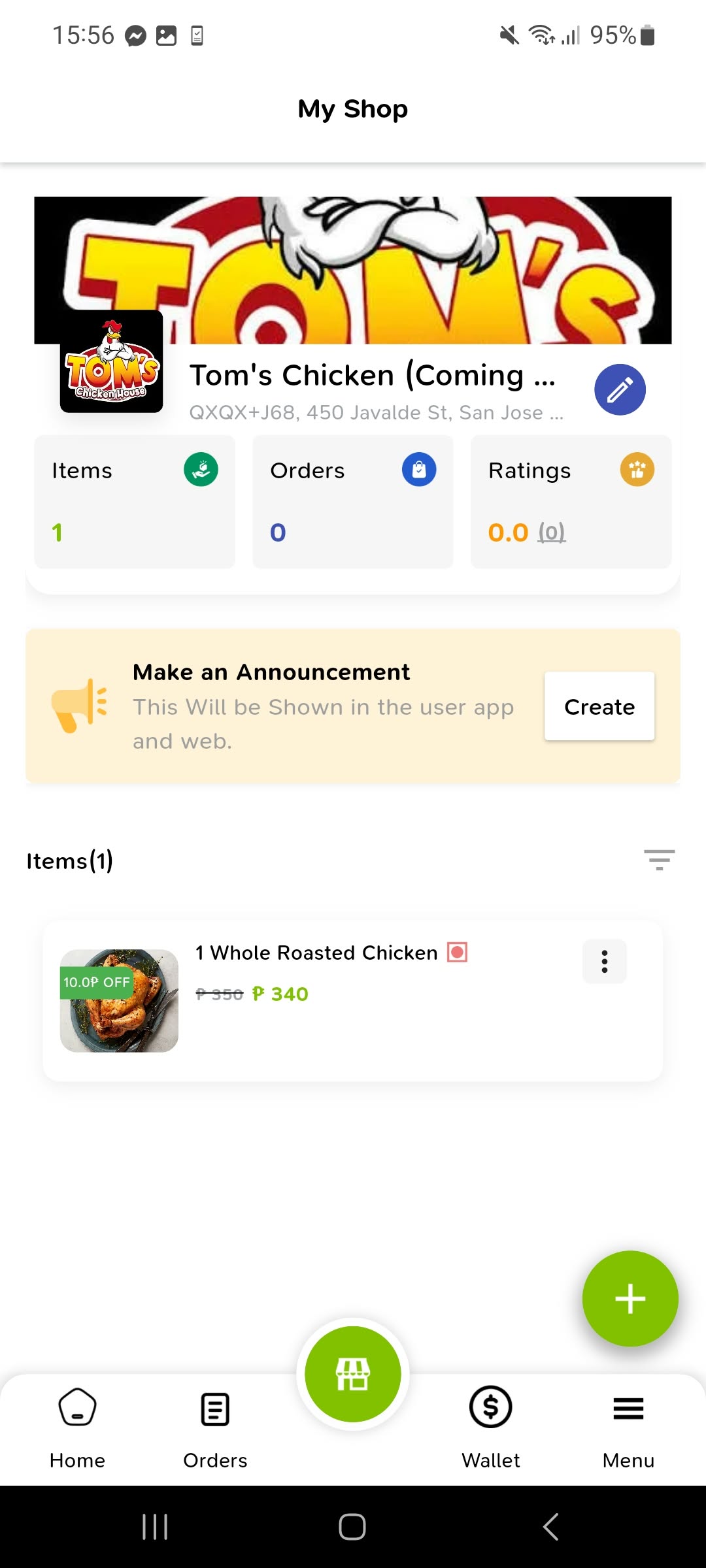
Check the item in My Shop
Back in My Shop, confirm that the new product appears in your Items list with its image and price. Use its three-dot menu when you need to manage the item.
Step 10 of 10View screenshot
Apply for a store advertisement
Use Advertisements to prepare a store promotion, review its details and follow the approval message in the app.
-
01
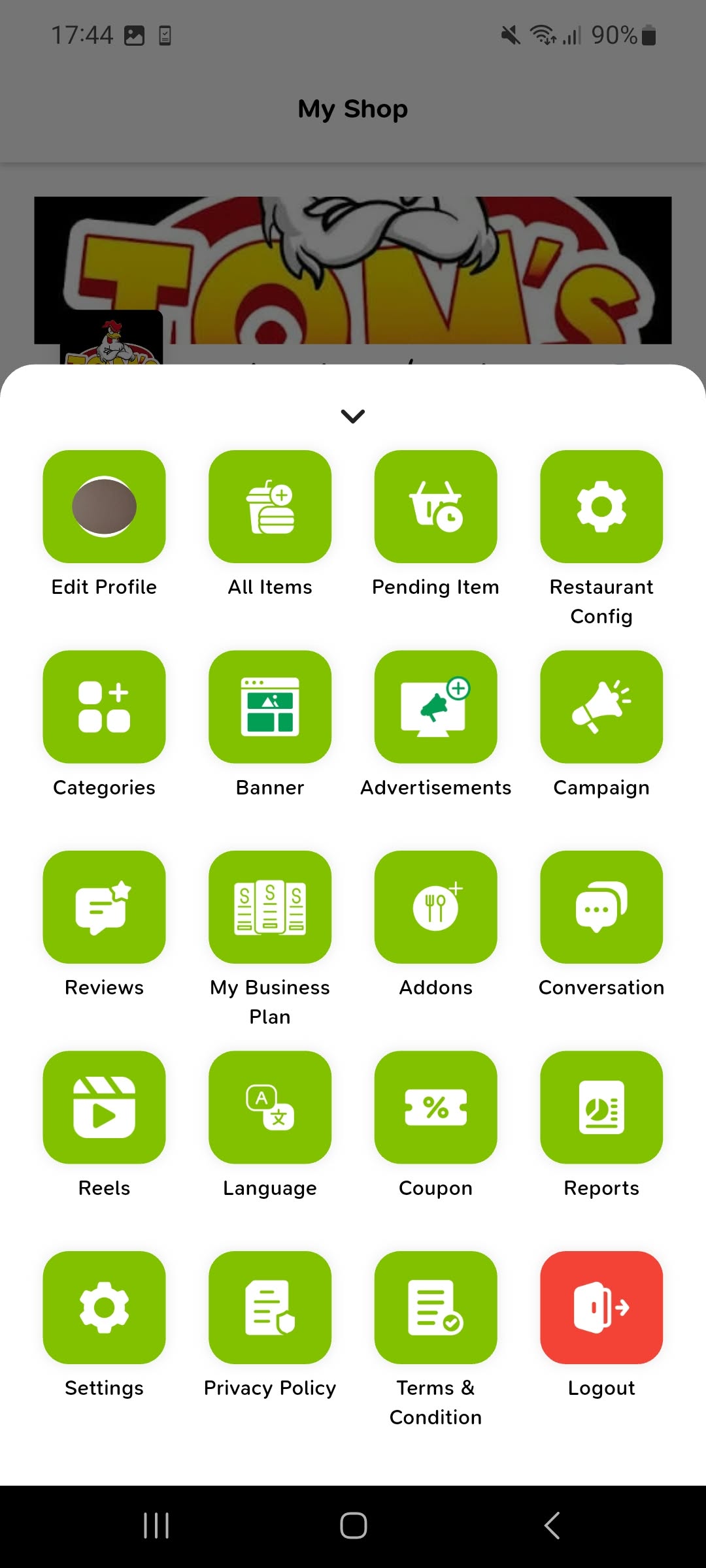
Open Advertisements from the store menu
Open the menu in My Shop and tap Advertisements. This opens your store's advertisement list.
Step 01 of 07View screenshot -
02
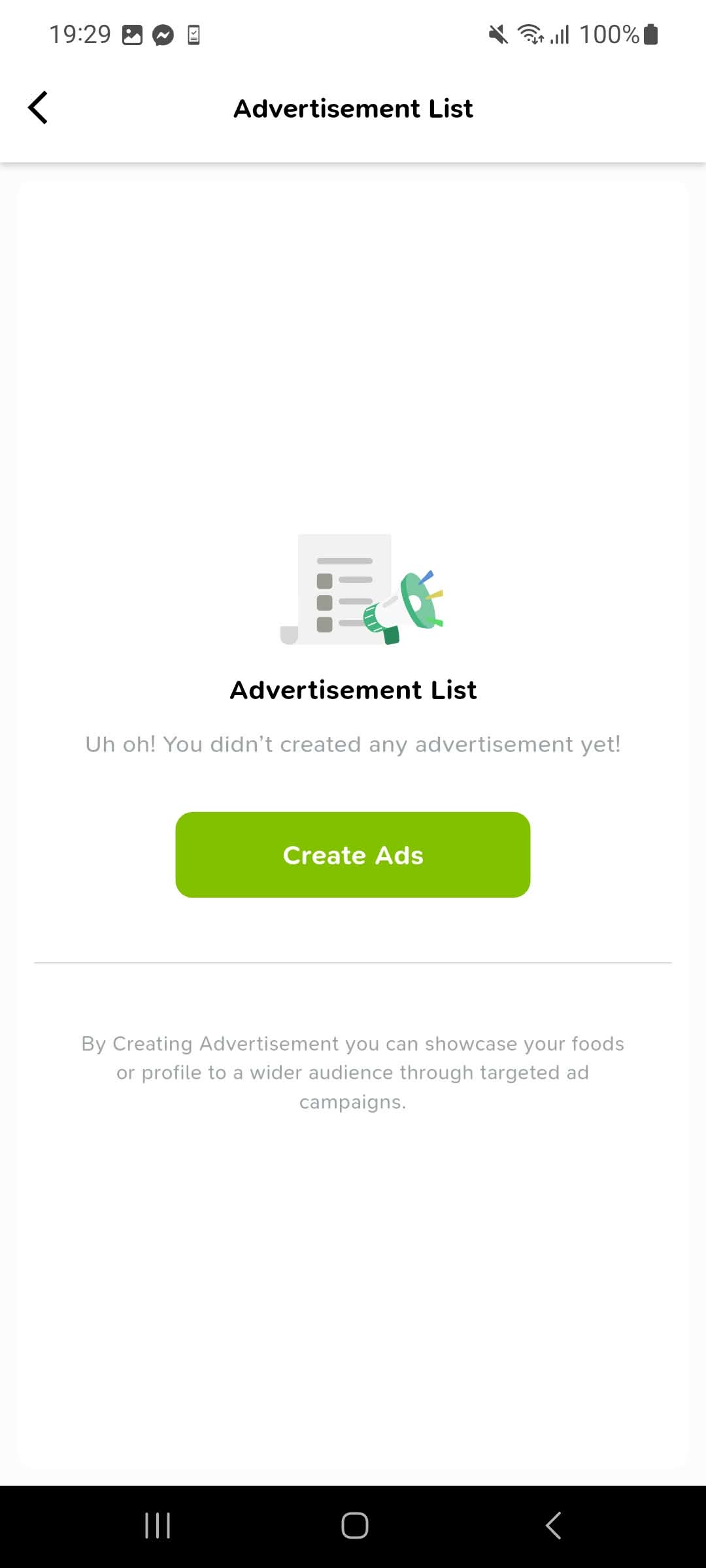
Start a new advertisement
On Advertisement List, tap Create Ads to open a new ad application.
Step 02 of 07View screenshot -
03
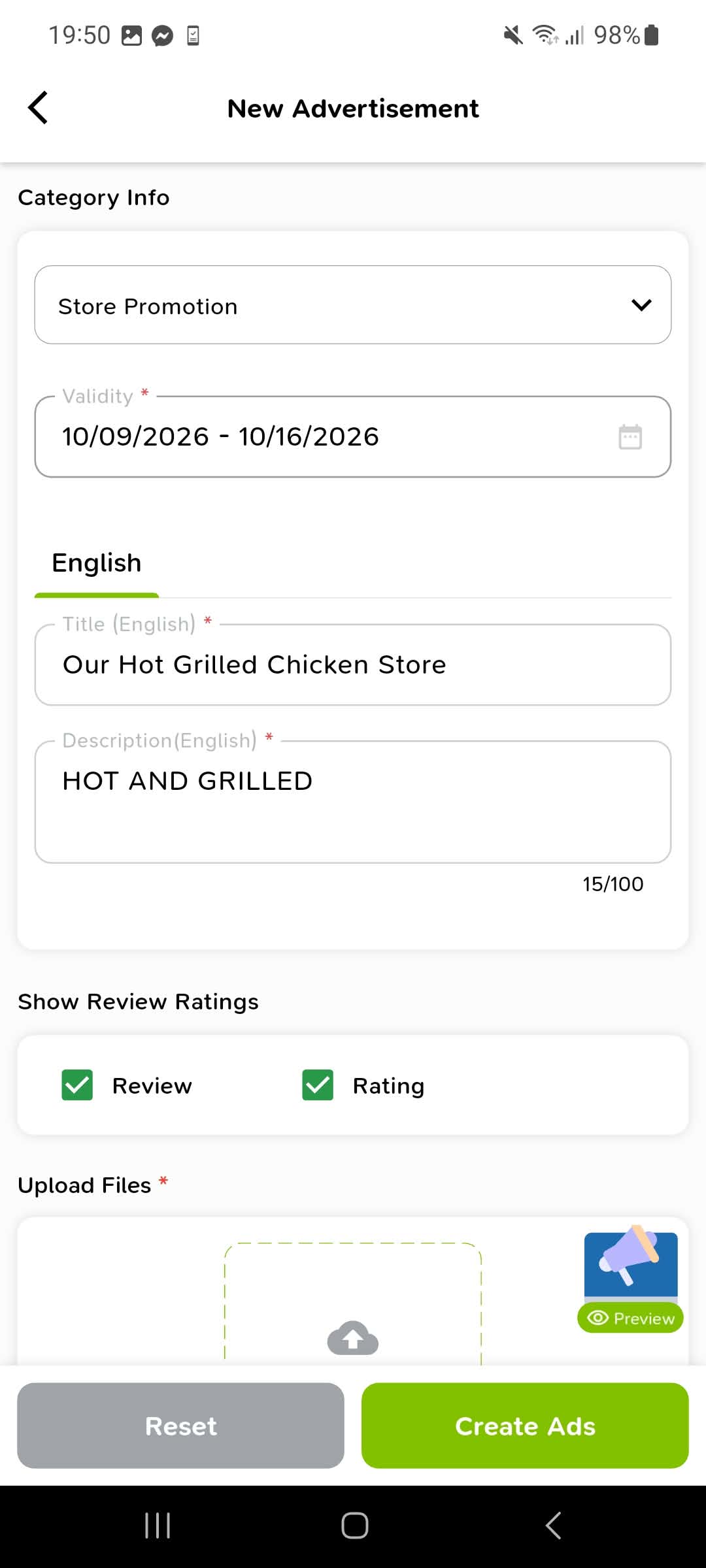
Enter the promotion details
In New Advertisement, choose the ad category, set the Validity date range and enter a title and description. Choose whether to show Review and Rating.
Step 03 of 07View screenshot -
04
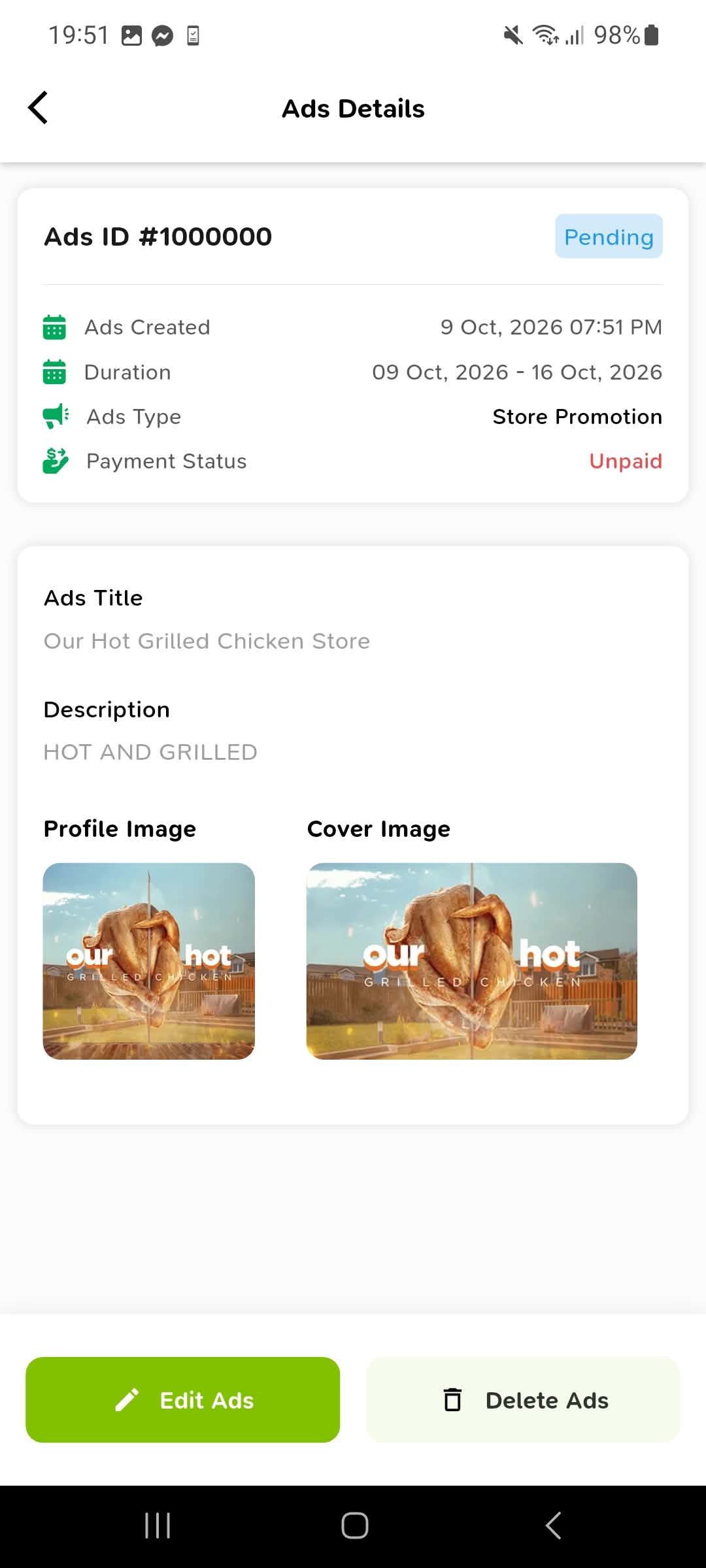
Review the ad details and status
The Ads Details screen shows the ad ID, duration, type and payment status, along with its title and images. Check these details; use Edit Ads if you need to make a change.
Step 04 of 07View screenshot -
05
Check the profile and cover images
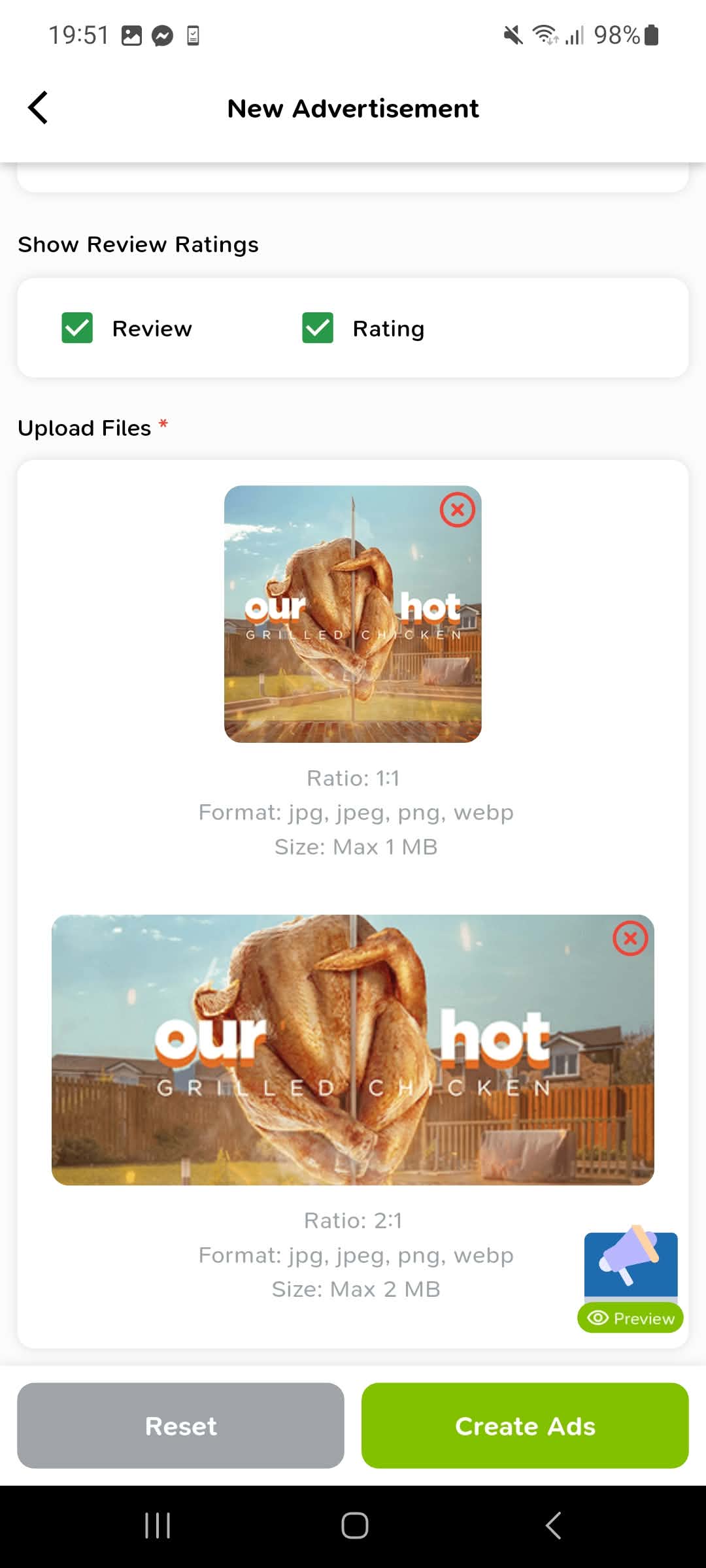
In the ad form's Upload Files area, review both images and follow the size and ratio requirements shown below each upload. The example uses a square profile image and a wide cover image.
Step 05 of 07View screenshot -
06
Read the application confirmation
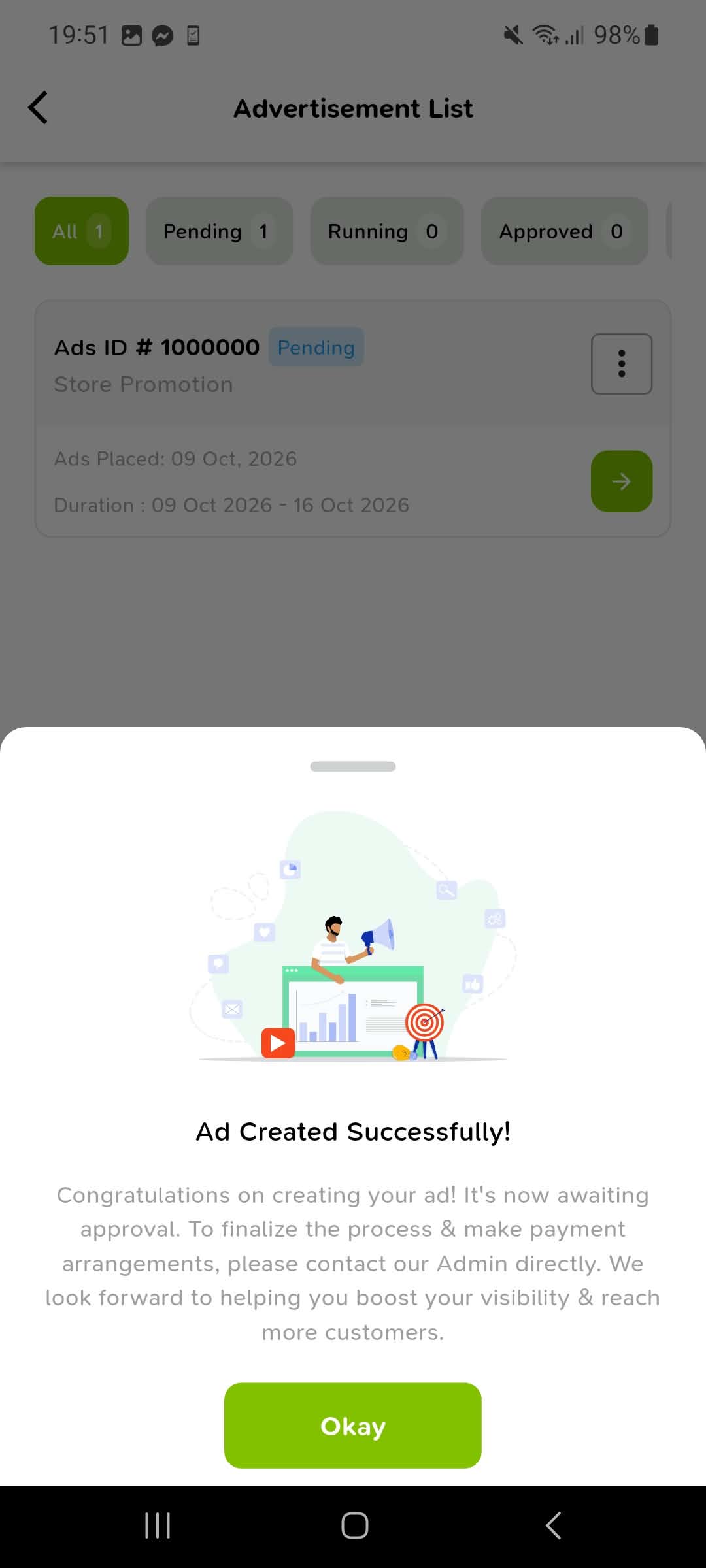
After submitting with Create Ads, the Ad Created Successfully! message explains the approval and payment arrangements. Follow the message and tap Okay.
Step 06 of 07View screenshot -
07
Preview the advertisement
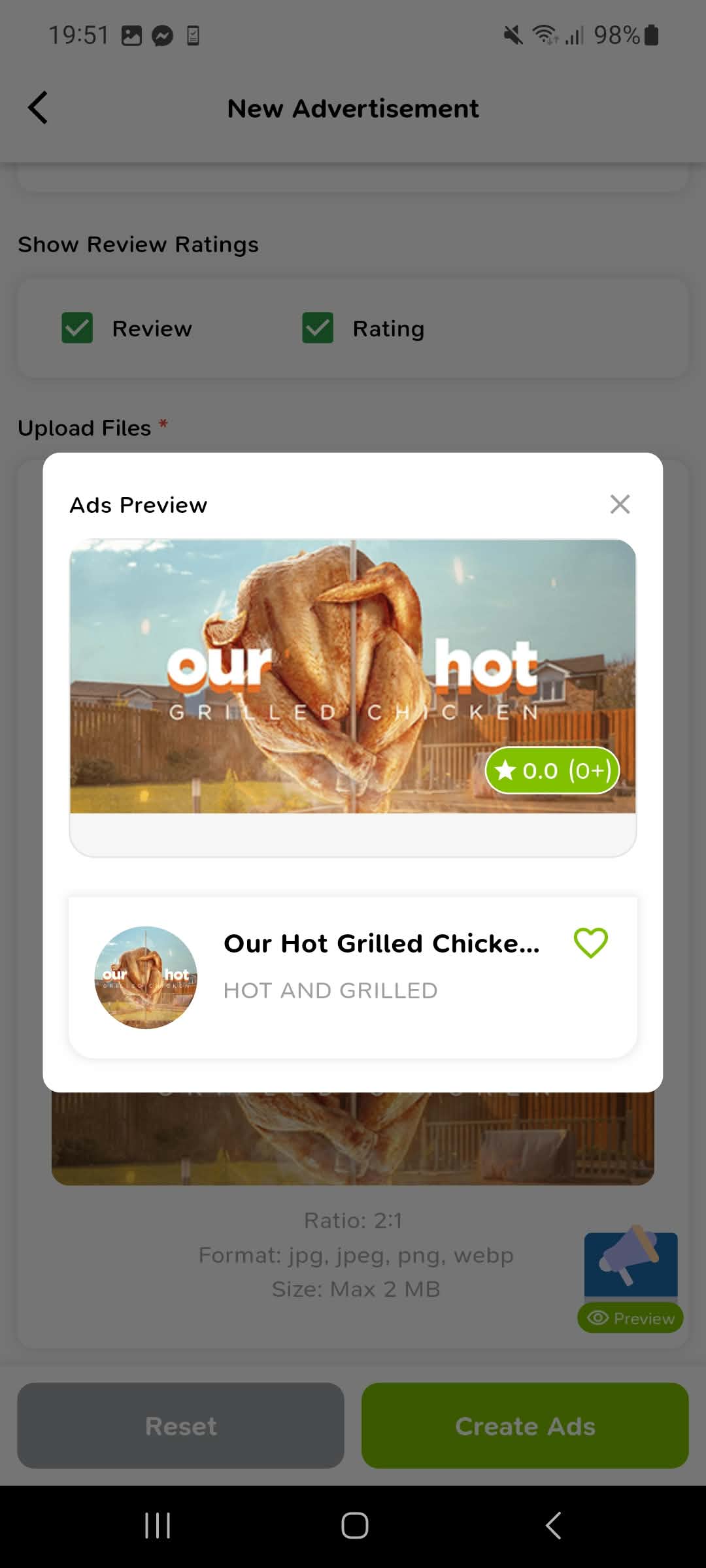
Tap Preview in the ad form to see how the promotion card looks. Check the cover image, profile image, title and description before closing the preview.
Step 07 of 07View screenshot
Create a reel for your store
Add a description, thumbnail and media, then connect your reel to an item customers can order.
-
01
Open Reels from the store menu
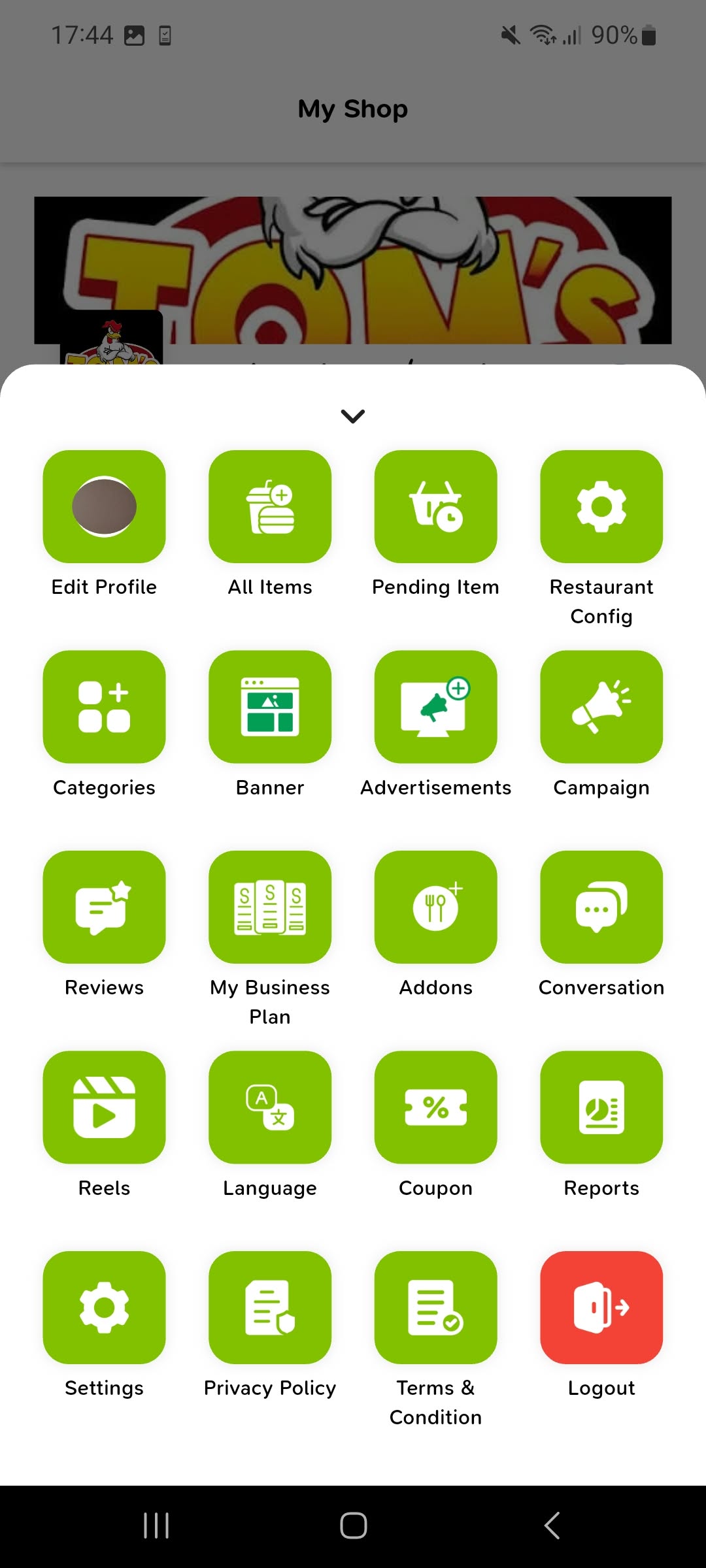
Open your My Shop menu and tap Reels.
Step 01 of 05View screenshot -
02
Create your first reel
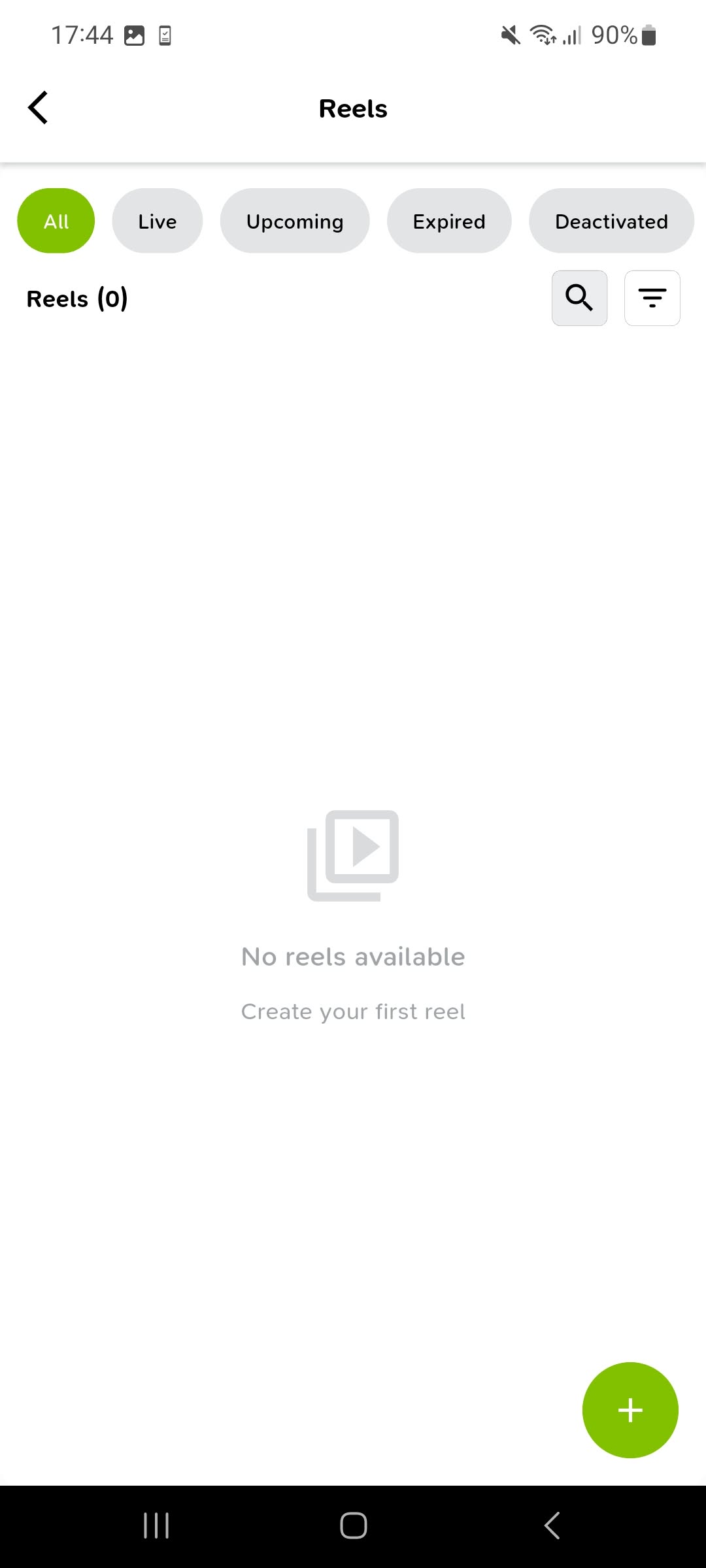
On the Reels screen, tap the green + button to open Create Reel. The tabs above the list let you review reel statuses.
Step 02 of 05View screenshot -
03
Add a description, schedule and thumbnail
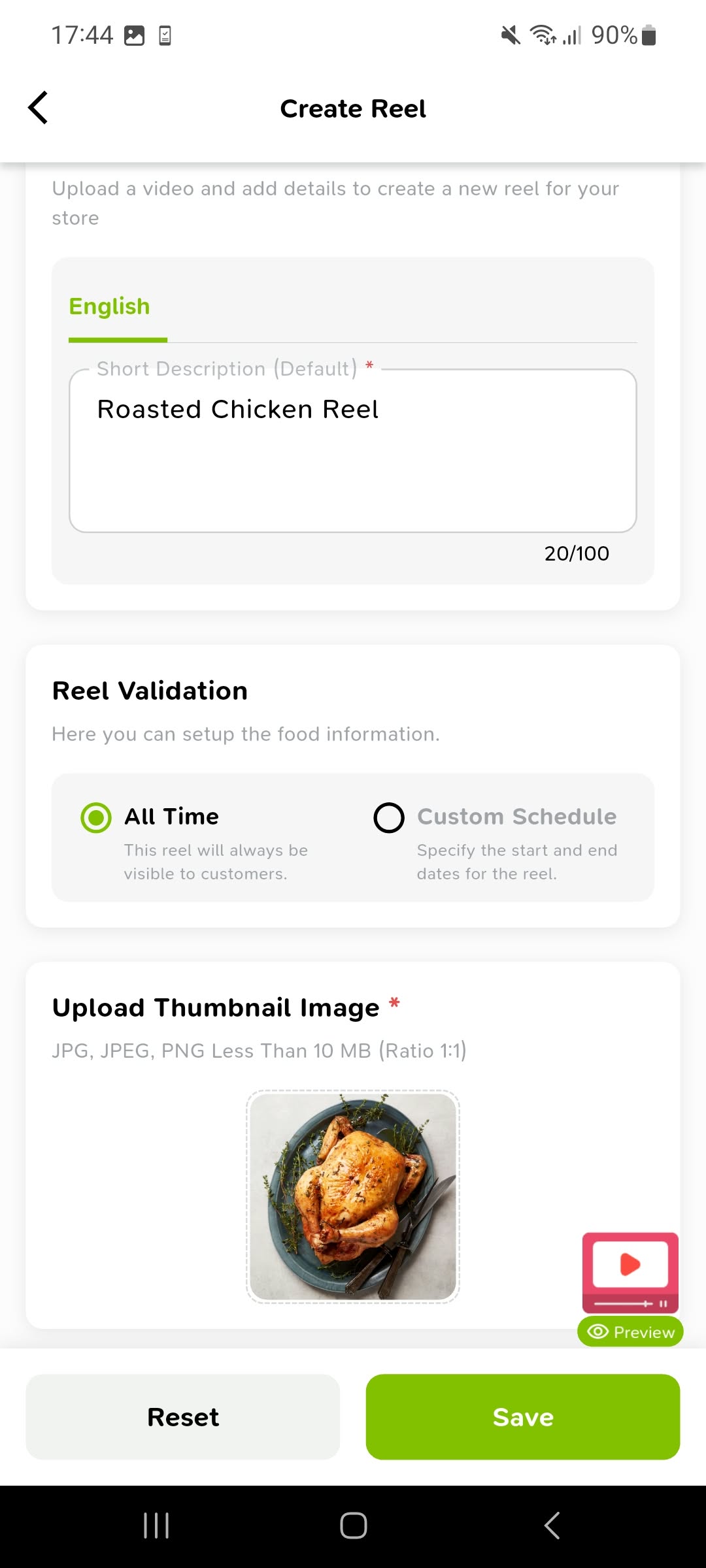
Enter a Short Description. Under Reel Validation, select All Time or Custom Schedule, then upload a square Thumbnail Image.
Step 03 of 05View screenshot -
04
Upload the media and link an item
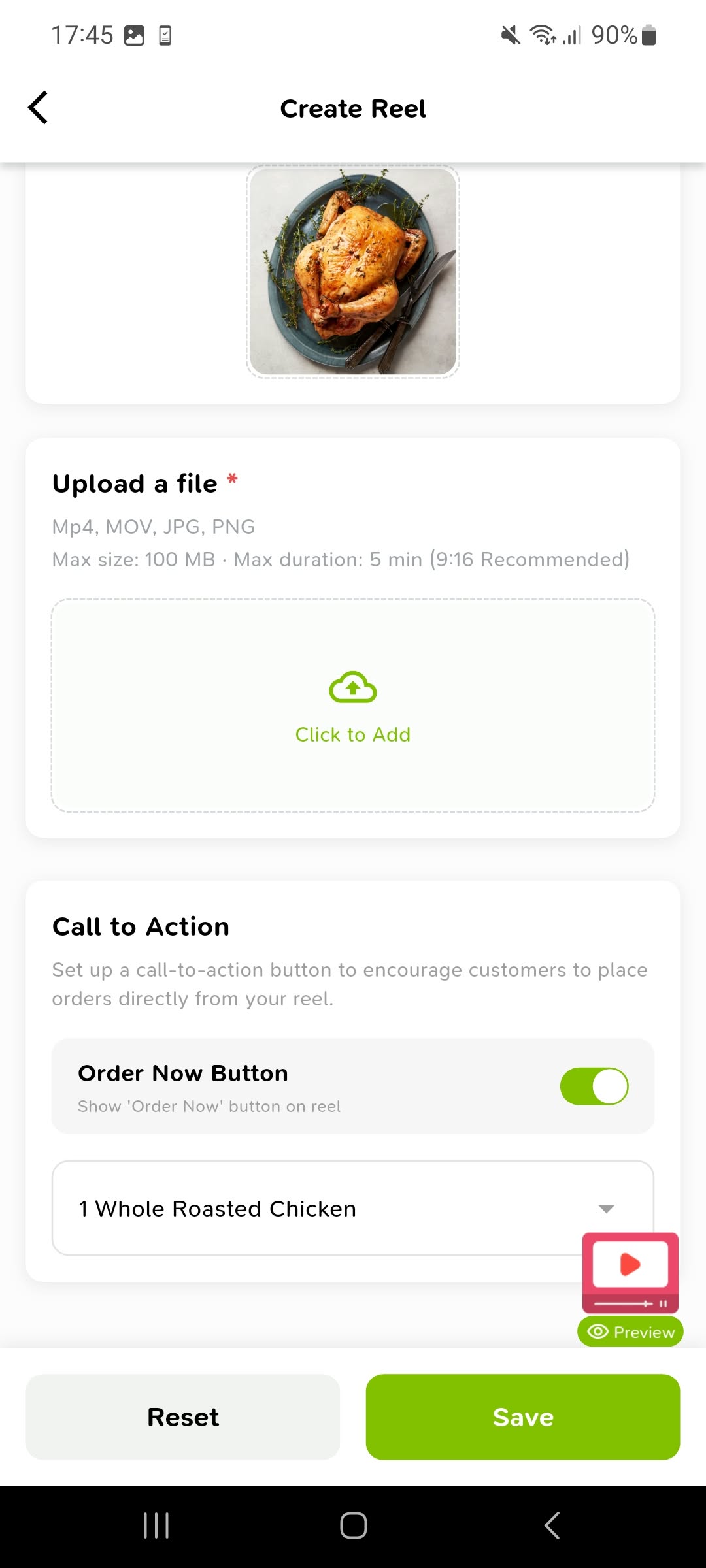
Under Upload a file, tap Click to Add and select your media, following the limits shown. Enable the Order Now Button if needed and select the product to link to your reel.
Step 04 of 05View screenshot -
05
Preview the reel, then save
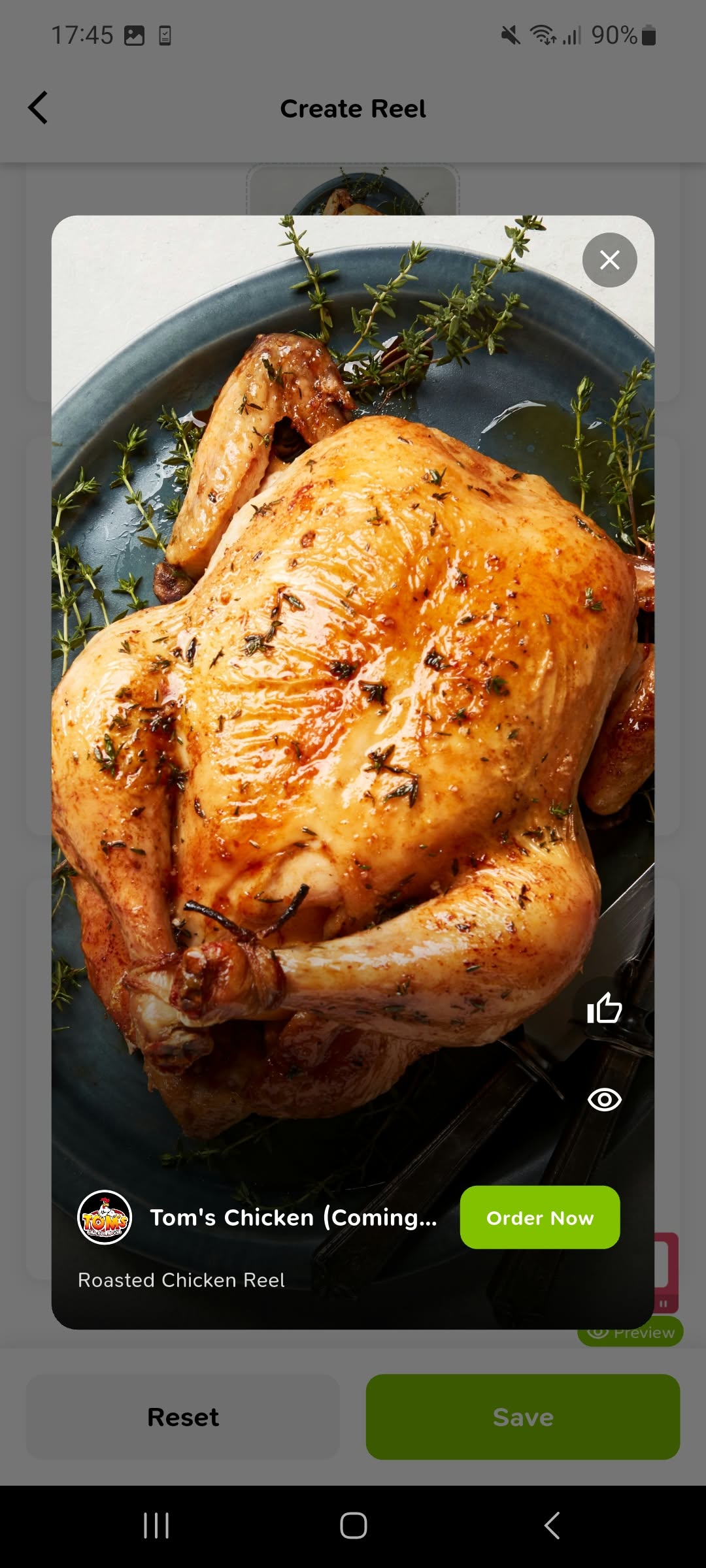
Tap Preview to check the media, description and Order Now button. Close the preview and tap Save when the reel is ready.
Step 05 of 05View screenshot
Need more help? We're here.
Need a hand with registration, store setup or a feature in the app? Contact our team for help.